> For the complete documentation index, see [llms.txt](https://docs.roboflow.com/llms.txt). Markdown versions of documentation pages are available by appending `.md` to page URLs; this page is available as [Markdown](https://docs.roboflow.com/datasets/ko/manage/project-folders.md).

# 프로젝트 폴더

## 소개

프로젝트 폴더는 작업 공간 내 프로젝트의 구성과 보안을 향상합니다. 폴더를 사용하면 하나 이상의 프로젝트를 서로 다른 범주로 그룹화할 수 있어, 프로젝트를 더 쉽게 탐색하고 정리하며 관리할 수 있습니다. 또한 SSO가 활성화된 작업 공간에서는 폴더 내 프로젝트에 대한 접근을 특정 팀원으로 제한할 수 있어 데이터 보안이 강화됩니다.

## 웹 앱

#### 폴더 보기

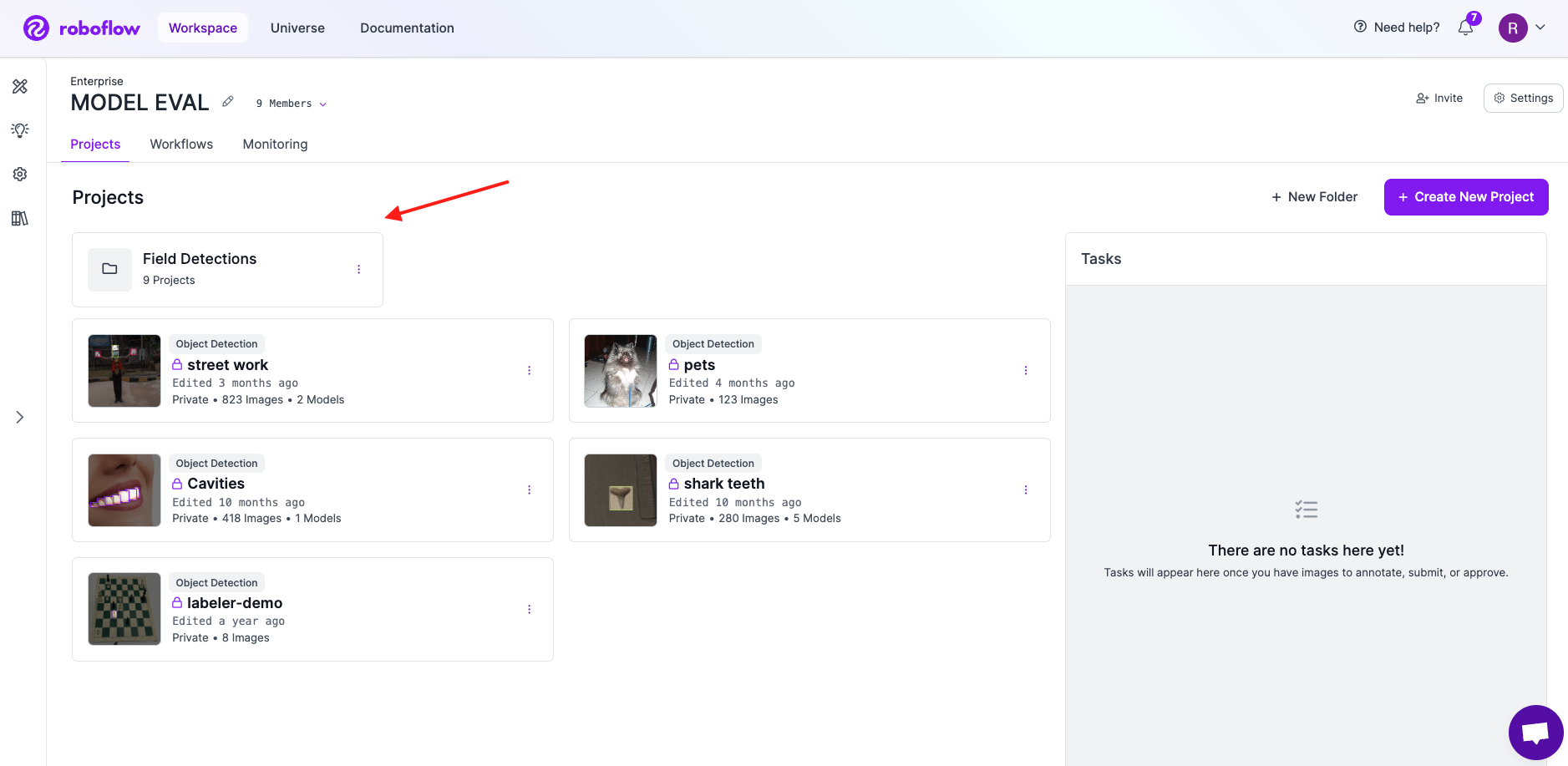
작업 공간 보기에서 보유한 모든 프로젝트 폴더가 상단에 표시됩니다. 작업 공간에는 하나 이상의 프로젝트 폴더가 있을 수 있으며, 각 프로젝트 폴더에는 하나 이상의 프로젝트가 포함될 수 있습니다.

<figure><img src="/files/4703eb8a9c56417e453b362e9790a0eeee8c2c22" alt=""><figcaption><p>프로젝트 폴더는 작업 공간 상단에 표시됩니다</p></figcaption></figure>

#### 폴더 만들기

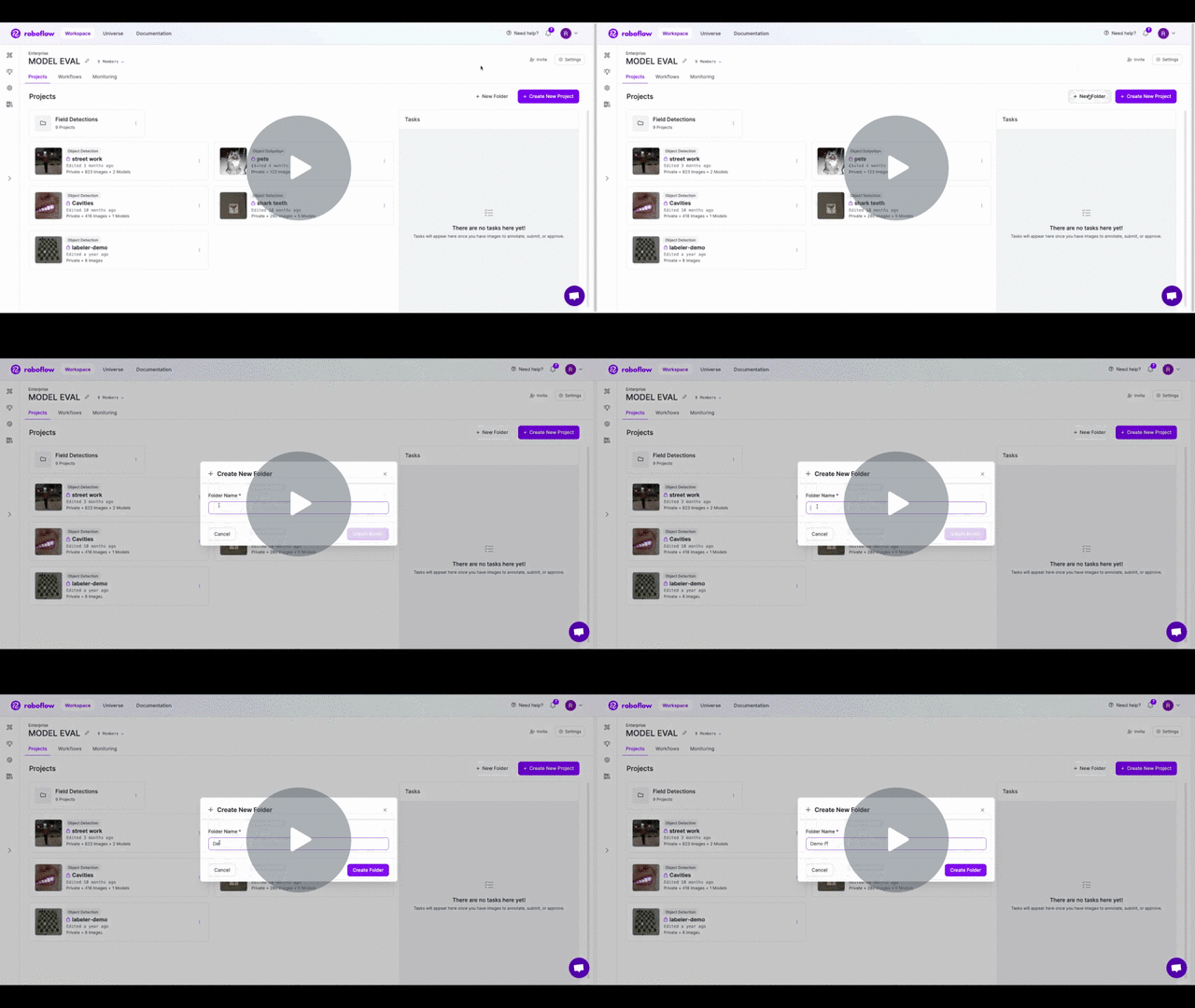
새 폴더를 만들려면 오른쪽 상단의 "+ New Folder" 버튼을 클릭하세요. 폴더 이름을 입력하고 "Save"를 클릭합니다. 페이지가 프로젝트 폴더로 이동하며, 그곳에서 새 프로젝트를 만들 수 있습니다. 프로젝트 폴더 보기에서 만든 모든 프로젝트는 자동으로 해당 폴더에 추가됩니다.

[\[Roboflow 문서\] 프로젝트 폴더 - 프로젝트 만들기 - 비디오 보기](https://www.loom.com/share/aefb3b5fd1ea40cdb4183c903f13d9c8)

<figure><img src="https://cdn.loom.com/sessions/thumbnails/aefb3b5fd1ea40cdb4183c903f13d9c8-with-play.gif" alt=""><figcaption><p>새 프로젝트 폴더 만들기</p></figcaption></figure>

#### 폴더 이름 바꾸기

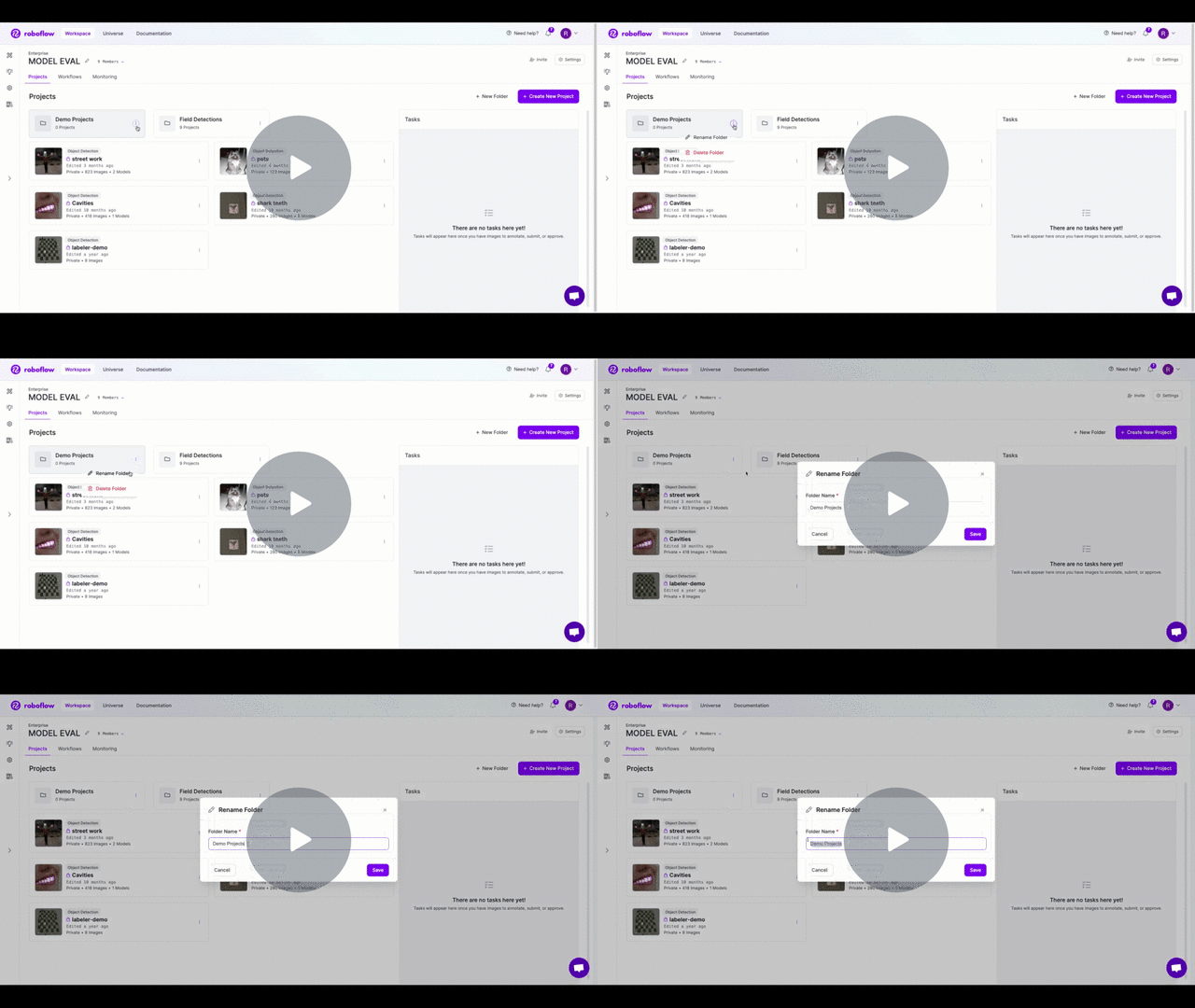
폴더 이름을 바꾸려면 프로젝트 폴더에서 드롭다운 메뉴(점 3개)를 클릭하세요. "Rename" 옵션을 선택한 다음 프로젝트의 새 이름을 입력합니다. "Save"를 클릭하면 폴더의 이름이 새 이름으로 변경됩니다.

[\[Roboflow 문서\] 프로젝트 폴더 - 폴더 이름 바꾸기 - 비디오 보기](https://www.loom.com/share/63508a2ff629454690ac0957d5cfc990)

<figure><img src="https://cdn.loom.com/sessions/thumbnails/63508a2ff629454690ac0957d5cfc990-with-play.gif" alt=""><figcaption></figcaption></figure>

#### 폴더에서 프로젝트 관리하기

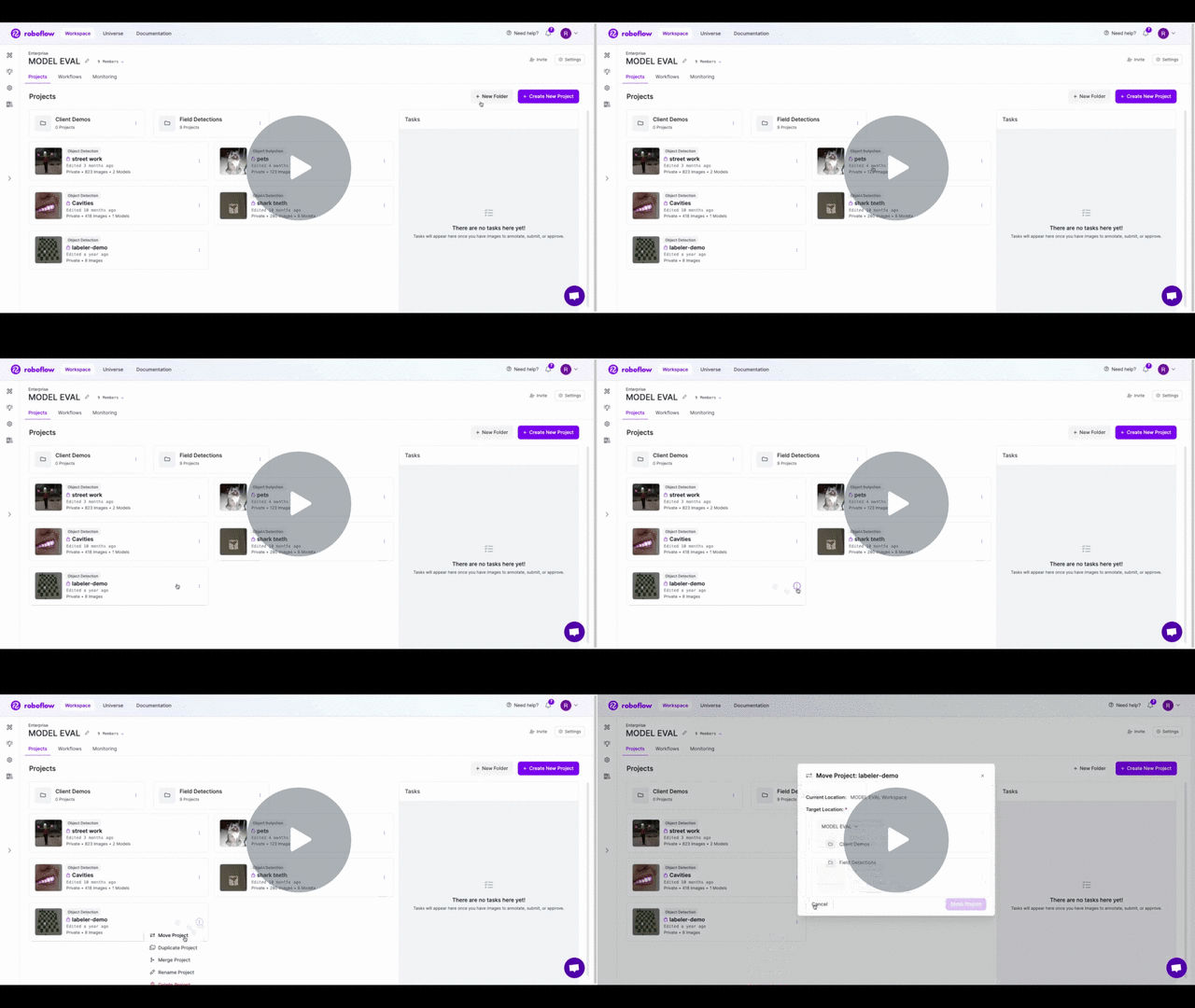
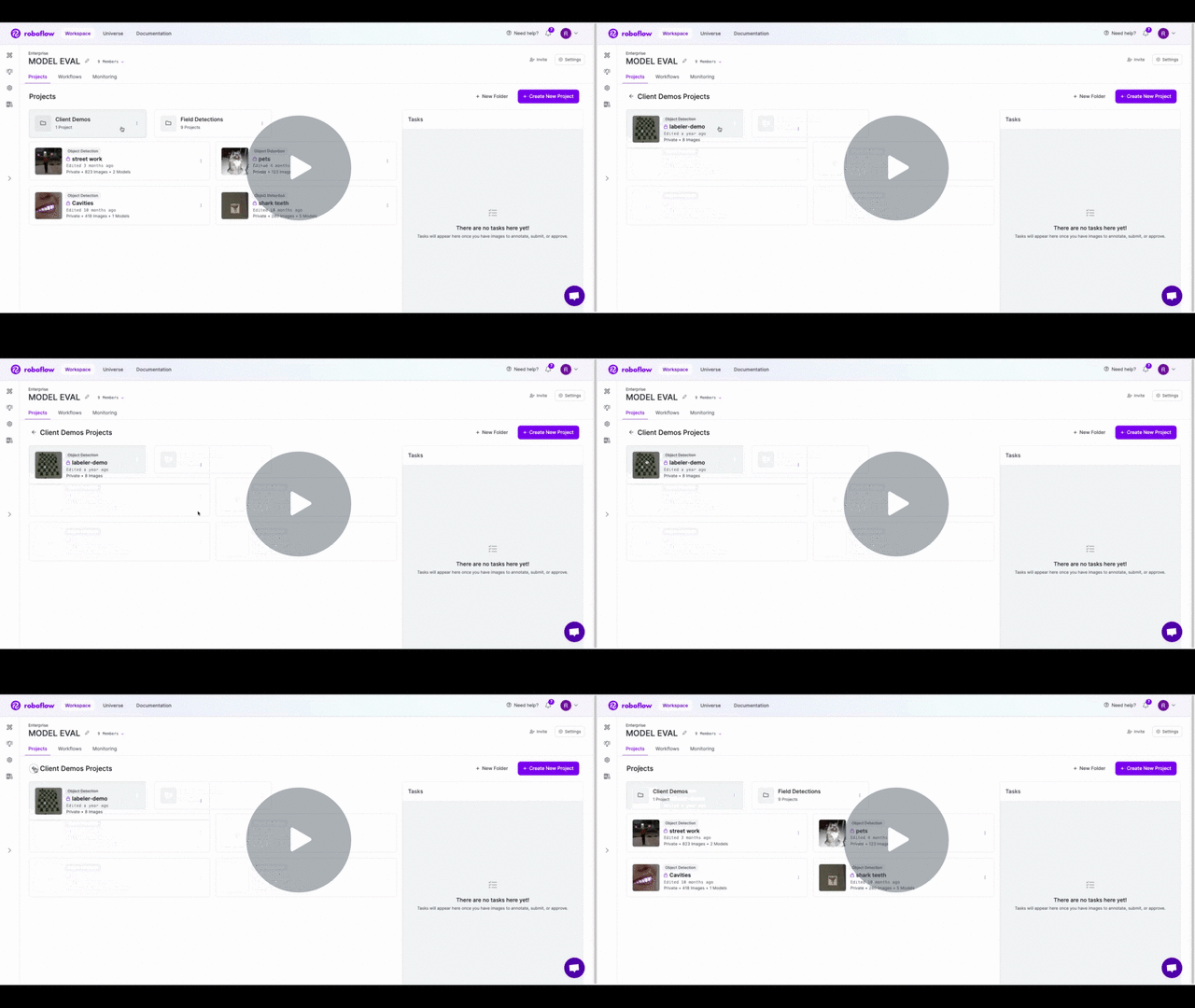
기존 프로젝트를 폴더로 이동할 수 있습니다. 프로젝트를 이동하려면 프로젝트의 드롭다운 메뉴(점 3개)를 클릭하고 "Move Project"를 선택하세요. 그러면 새 대상 위치를 선택할 수 있는 팝업이 표시됩니다. 프로젝트 폴더가 없다면 "New Folder" 버튼을 클릭하여 추가할 수 있습니다. 그렇지 않다면 기존 폴더 중 하나를 대상 위치로 선택할 수 있습니다. 프로젝트를 폴더 밖으로 이동하려면 작업 공간의 이름을 선택하세요.

[\[Roboflow 문서\] 프로젝트 폴더 - 프로젝트 이동 - 비디오 보기](https://www.loom.com/share/a411cabb98f14255b07c3c2e209c3abd)

<figure><img src="https://cdn.loom.com/sessions/thumbnails/a411cabb98f14255b07c3c2e209c3abd-with-play.gif" alt=""><figcaption></figcaption></figure>

#### 폴더 삭제하기

프로젝트 폴더에서 드롭다운 메뉴(점 3개)를 클릭하고 "Delete" 옵션을 선택하면 폴더를 삭제할 수 있습니다(이 작업은 취소할 수 없습니다). 폴더를 삭제하면 **하지 않습니다** 폴더 안의 프로젝트는 삭제되지 않고, 해당 프로젝트는 작업 공간 수준으로 다시 이동합니다. 폴더 안의 모든 워크플로 또한 작업 공간 수준으로 다시 이동하며 계속 접근할 수 있습니다.

[\[Roboflow 문서\] 프로젝트 폴더 - 폴더 삭제 - 비디오 보기](https://www.loom.com/share/852e70b217de4d5d9ca79bef41903ad9)

<figure><img src="https://cdn.loom.com/sessions/thumbnails/852e70b217de4d5d9ca79bef41903ad9-with-play.gif" alt=""><figcaption></figcaption></figure>

### 사용자 지정 폴더 권한

폴더는 프로젝트를 정리하고 관리하는 좋은 방법이지만, 폴더의 일부에 대해 사용자 지정 권한을 설정할 수도 있습니다. 예를 들어 작업 공간의 일부 구성원만 특정 폴더의 프로젝트에 접근하도록 하려는 경우, Roboflow의 SSO 통합을 사용해 이를 구현할 수 있습니다. 시작하려면 지원팀에 문의해 주세요. 설정을 도와드리겠습니다.

### 프로젝트 폴더 API

프로젝트 폴더는 Roboflow API를 사용하여 프로그래밍 방식으로 관리할 수 있습니다. 사용 가능한 엔드포인트에 대한 자세한 내용은 다음을 확인하세요. [프로젝트 폴더 API](#http-api) 문서.

## HTTP API

Roboflow API를 사용하여 프로젝트 폴더를 프로그래밍 방식으로 관리할 수 있습니다.

**참고:** 이 기능은 Enterprise 작업 공간에서만 사용할 수 있습니다.

**참고**: 귀하의 `api_key` 은(는) 모든 요청에 전송되어야 합니다. `api_key` 쿼리 매개변수로 전송하거나 POST 본문의 최상위 속성으로 보낼 수 있습니다.

### 프로젝트 폴더 만들기

<mark style="color:초록색;">`POST`</mark> `/:workspace/groups`

프로젝트 폴더를 만듭니다.

**헤더**

| 이름           | 값                  |
| ------------ | ------------------ |
| Content-Type | `application/json` |

**본문**

<table data-search="false"><thead><tr><th width="164">이름</th><th width="223">유형</th><th width="287">설명</th><th data-type="checkbox">필수</th></tr></thead><tbody><tr><td><code>api_key</code></td><td>string</td><td>프로젝트 폴더를 생성할 작업 공간의 API 키</td><td>true</td></tr><tr><td><code>name</code></td><td>string</td><td>프로젝트 폴더의 이름</td><td>false</td></tr><tr><td><code>프로젝트</code></td><td>Array&#x3C;string></td><td>이 폴더로 이동해야 할 프로젝트 ID 목록</td><td>false</td></tr><tr><td><code>external_id</code></td><td>string</td><td>외부 시스템에서 이 프로젝트 폴더의 ID</td><td>false</td></tr><tr><td><code>auth_groups</code></td><td>Map&#x3C;"read" | "write\n, Array&#x3C;string></td><td>이 폴더 내 프로젝트에 대한 읽기/쓰기 권한을 가져야 하는 권한 그룹 목록입니다. (참고: 이 기능은 추가 설정이 필요하므로 사용하기 전에 Roboflow에 문의해 주세요)</td><td>false</td></tr></tbody></table>

**요청 예시**

```
curl --location 'https://api.roboflow.com/<workspace_id>/groups?api_key=$ROBOFLOW_API_KEY' \\
--header 'Content-Type: application/json' \
--data '{
    "name": "고객 데모",
    "projects": ["client-demo-project-1", "another-project-id"],
    "external_id": "jfowke123jfiowje",
    "auth_groups": {
        "read": [],
        "write": []
    }
}'
```

**응답**

{% tabs %}
{% tab title="200" %}

```json
{
  "id": "<project_folder_id>"
}
```

{% endtab %}

{% tab title="401" %}

```json
{
  "error": "잘못된 요청"
}
```

{% endtab %}
{% endtabs %}

### 프로젝트 폴더 가져오기

<mark style="color:초록색;">`GET`</mark> `/:workspace/groups/:folderId`

ID로 프로젝트 폴더를 가져옵니다

**헤더**

| 이름           | 값                  |
| ------------ | ------------------ |
| Content-Type | `application/json` |

**쿼리**

<table data-search="false"><thead><tr><th>이름</th><th>유형</th><th>설명</th><th data-type="checkbox">필수</th></tr></thead><tbody><tr><td><code>api_key</code></td><td>string</td><td>프로젝트 폴더가 있는 작업 공간의 API 키</td><td>true</td></tr></tbody></table>

**요청 예시**

```
curl --location 'https://api.roboflow.com/<workspace_id>/groups?api_key=$ROBOFLOW_API_KEY' \\
--header 'Content-Type: application/json'
```

**응답**

{% tabs %}
{% tab title="200" %}

```json
{
  "data": Array<#ProjectFolder>
}
```

{% endtab %}

{% tab title="404" %}
다음으로 지정된 프로젝트 폴더 `folderId` 매개변수가 존재하지 않거나, 제공된 API 키에 속한 작업 공간에 프로젝트 폴더가 없습니다
{% endtab %}
{% endtabs %}

### 프로젝트 폴더 업데이트

<mark style="color:초록색;">`POST`</mark> `/:workspace/groups/:folderId`

프로젝트 폴더의 속성을 업데이트합니다

**헤더**

| 이름           | 값                  |
| ------------ | ------------------ |
| Content-Type | `application/json` |

**쿼리**

<table data-search="false"><thead><tr><th>이름</th><th></th><th></th><th data-type="checkbox">필수</th></tr></thead><tbody><tr><td><code>returnUpdated</code></td><td>불리언</td><td>설정하면, 응답에 전체 리소스 페이로드를 반환합니다</td><td>false</td></tr></tbody></table>

**본문**

<table data-search="false"><thead><tr><th width="164">이름</th><th width="223">유형</th><th width="287">설명</th><th data-type="checkbox">필수</th></tr></thead><tbody><tr><td><code>api_key</code></td><td>string</td><td>프로젝트 폴더를 생성할 작업 공간의 API 키</td><td>true</td></tr><tr><td><code>name</code></td><td>string</td><td>프로젝트 폴더의 이름</td><td>false</td></tr><tr><td><code>프로젝트</code></td><td>Array&#x3C;string></td><td>이 폴더로 이동해야 할 프로젝트 ID 목록</td><td>false</td></tr><tr><td><code>external_id</code></td><td>string</td><td>외부 시스템에서 이 프로젝트 폴더의 ID</td><td>false</td></tr><tr><td><code>auth_groups</code></td><td>Map&#x3C;"read" | "write\n, Array&#x3C;string></td><td>이 폴더 내 프로젝트에 대한 읽기/쓰기 권한을 가져야 하는 권한 그룹 목록입니다. (참고: 이 기능은 추가 설정이 필요하므로 사용하기 전에 Roboflow에 문의해 주세요)</td><td>false</td></tr></tbody></table>

**요청 예시**

```
curl --location 'https://api.roboflow.com/<workspace_id>/groups/<folder_id>?api_key=$ROBOFLOW_API_KEY&returnUpdated=true' \\
--header 'Content-Type: application/json' \
--data '{
    "name": "새 이름"
}'
```

**응답**

{% tabs %}
{% tab title="204" %}
콘텐츠 없음. 리소스가 성공적으로 업데이트되었습니다
{% endtab %}

{% tab title="200" %}

```
// 쿼리 매개변수 ?returnUpdated=true인 경우에만
{
    "data": Array<#ProjectFolder>
}
```

{% endtab %}
{% endtabs %}

### 폴더에 프로젝트 추가

<mark style="color:초록색;">`PATCH`</mark> `/:workspace/groups/:folderId/projects`

기존 폴더에 하나 이상의 프로젝트를 추가합니다

**헤더**

| 이름           | 값                  |
| ------------ | ------------------ |
| Content-Type | `application/json` |

**본문**

<table data-search="false"><thead><tr><th>이름</th><th>유형</th><th>설명</th><th data-type="checkbox">필수</th></tr></thead><tbody><tr><td><code>프로젝트</code></td><td>Array&#x3C;string></td><td>프로젝트 폴더에 추가할 프로젝트 ID 목록</td><td>true</td></tr></tbody></table>

**요청 예시**

```
curl --location --request PATCH 'https://api.roboflow.com/<workspace_id>/groups/example-folder-id/projects?api_key=$ROBOFLOW_API_KEY' \\
--header 'Content-Type: application/json' \
--data '{
    "projects": ["dog-breeds-mi53"]
}'
```

**응답**

{% tabs %}
{% tab title="204" %}
콘텐츠 없음. 프로젝트가 그룹에 성공적으로 추가되었습니다
{% endtab %}
{% endtabs %}

### 폴더에서 프로젝트 제거

<mark style="color:빨간색;">`DELETE`</mark> `/:workspace/groups/:folderId/projects`

기존 폴더에서 하나 이상의 프로젝트를 제거하고 다시 최상위 작업 공간으로 배치합니다

**헤더**

| 이름           | 값                  |
| ------------ | ------------------ |
| Content-Type | `application/json` |

**본문**

<table data-search="false"><thead><tr><th>이름</th><th>유형</th><th>설명</th><th data-type="checkbox">필수</th></tr></thead><tbody><tr><td><code>프로젝트</code></td><td>Array&#x3C;string></td><td>프로젝트 폴더에서 제거할 프로젝트 ID 목록</td><td>true</td></tr></tbody></table>

**요청 예시**

```
curl --location --request PATCH 'https://api.roboflow.com/<workspace_id>/groups/example-folder-id/projects?api_key=$ROBOFLOW_API_KEY' \\
--header 'Content-Type: application/json' \
--data '{
    "projects": ["dog-breeds-mi53"]
}'
```

**응답**

{% tabs %}
{% tab title="204" %}
콘텐츠 없음. 프로젝트가 그룹에서 성공적으로 제거되었습니다
{% endtab %}
{% endtabs %}

### 프로젝트 폴더 삭제

<mark style="color:빨간색;">`DELETE`</mark> `/:workspace/groups/:folderId`

프로젝트 폴더를 삭제합니다. 폴더 내의 모든 프로젝트는 삭제되지 않고 다시 최상위 작업 공간으로 배치됩니다.

**헤더**

| 이름           | 값                  |
| ------------ | ------------------ |
| Content-Type | `application/json` |

**요청 예시**

<pre><code><strong>curl --location --request DELETE 'https://api.roboflow.com/&#x3C;workspace_id>/groups/example-folder-id/projects?api_key=&#x3C;api_key>' \\
</strong>--header 'Content-Type: application/json'
</code></pre>

**응답**

{% tabs %}
{% tab title="204" %}
콘텐츠 없음. 프로젝트 폴더가 성공적으로 삭제되었습니다
{% endtab %}
{% endtabs %}

## Python SDK

프로젝트 폴더는 작업 공간의 프로젝트를 중첩 그룹으로 구성합니다. Python SDK는 폴더 목록 조회와 생성을 직접 `작업 공간`; 업데이트와 삭제는 저수준 `rfapi` 어댑터를 통해 사용할 수 있습니다.

{% hint style="info" %}
프로젝트 폴더는 Enterprise 기능입니다. 폴더 엔드포인트는 `403` Enterprise가 아닌 작업 공간의 경우.
{% endhint %}

### 폴더 목록

```python
import roboflow

rf = roboflow.Roboflow(api_key="YOUR_API_KEY")
workspace = rf.workspace()

folders = workspace.list_folders()
for folder in folders.get("data", []):
    print(folder["id"], folder["name"])
```

### 폴더 만들기

```python
folder = workspace.create_folder(
    name="Training Data",
    parent_id=None,                              # 선택 사항, 중첩용
    project_ids=["my-detector", "other-project"], # 선택 사항, 생성 시 채우기
)
print(folder["id"])

```

#### 매개변수

* `name` (str) - 웹 앱에 표시되는 폴더 이름.
* `parent_id` (str, 선택 사항) - 하위에 중첩할 기존 폴더의 ID입니다. 최상위 폴더의 경우 생략하세요.
* `project_ids` (list\[str], 선택 사항) - 생성 시 폴더로 이동할 프로젝트 ID 목록입니다.

### 폴더 가져오기

```python
from roboflow.adapters import rfapi

folder = rfapi.get_folder("YOUR_API_KEY", workspace.url, "<folder-id>")
print(folder)
```

### 폴더 이름 바꾸기 또는 업데이트

```python
from roboflow.adapters import rfapi

rfapi.update_folder(
    "YOUR_API_KEY",
    workspace.url,
    "<folder-id>",
    name="새 이름",
)
```

### 폴더 삭제

```python
from roboflow.adapters import rfapi

rfapi.delete_folder("YOUR_API_KEY", workspace.url, "<folder-id>")
```

폴더를 삭제하면 해당 프로젝트가 다시 최상위 수준으로 이동하며, 프로젝트 자체는 삭제되지 않습니다.

## CLI

명령줄에서 작업 공간 폴더를 만들고, 목록을 보고, 업데이트하고, 삭제할 수 있습니다.

### 폴더 목록

```bash
roboflow folder list
```

JSON 출력 시:

```bash
roboflow folder list --json
```

### 폴더 세부 정보 가져오기

```bash
roboflow folder get <folder-id>
```

```bash
roboflow folder get <folder-id> --json
```

### 폴더 만들기

```bash
roboflow folder create "Training Data"
```

#### 옵션

| 플래그          | 설명                       |
| ------------ | ------------------------ |
| `--parent`   | 상위 폴더 ID(중첩용)            |
| `--projects` | 포함할 프로젝트 ID를 쉼표로 구분하여 입력 |

프로젝트가 포함된 예:

```bash
roboflow folder create "Q2 Models" --projects my-project,other-project
```

### 폴더 업데이트

폴더 이름 바꾸기:

```bash
roboflow folder update <folder-id> --name "New Name"
```

### 폴더 삭제

```bash
roboflow folder delete <folder-id>
```

### JSON 출력

모든 폴더 명령은 다음을 지원합니다: `--json` 구조화된 출력용:

```bash
roboflow folder list --json | jq '.[].name'
roboflow folder create "My Folder" --json
```

종료 코드: 0 = 성공, 1 = 오류, 2 = 인증 오류, 3 = 찾을 수 없음.