> For the complete documentation index, see [llms.txt](https://docs.roboflow.com/llms.txt). Markdown versions of documentation pages are available by appending `.md` to page URLs; this page is available as [Markdown](https://docs.roboflow.com/deploy/batch-processing/troubleshooting.md).
# Troubleshooting
This page lists known issues, limitations, and workarounds for Batch Processing. If you encounter a problem not listed here, please report it through our [support channels](https://github.com/roboflow/inference/issues).
## Known Limitations
* Certain Workflow blocks requiring access to environment variables and local storage (like File Sink and Environment Secret Store) are blocked and will not execute.
* The service only works with Workflows that define a **single** input image parameter.
## Technical Details
* Data is stored in Data Staging with a **7-day expiry**.
* Each batch processing job contains multiple stages (typically `processing` and `export`). Each stage creates an output batch. We recommend using `export` stage outputs, as they are compressed for efficient transfer.
* A running job in the `processing` stage can be aborted using both the UI and CLI.
* An aborted or failed job can be restarted.
* The service automatically shards data and processes it in parallel:
* The number of machines scales automatically based on data volume (throughput can reach 500k–1M images/hour for certain workloads).
* Each machine runs multiple workers processing chunks of data. This is configurable and should be tuned to balance speed and cost.
* For image jobs, if too many images in a single shard fail, that shard is aborted while the rest of the job continues. You can configure this threshold per job (see [Per-Shard Image Failure Tolerance](#per-shard-image-failure-tolerance) below).
## Job Timed Out
### Issue
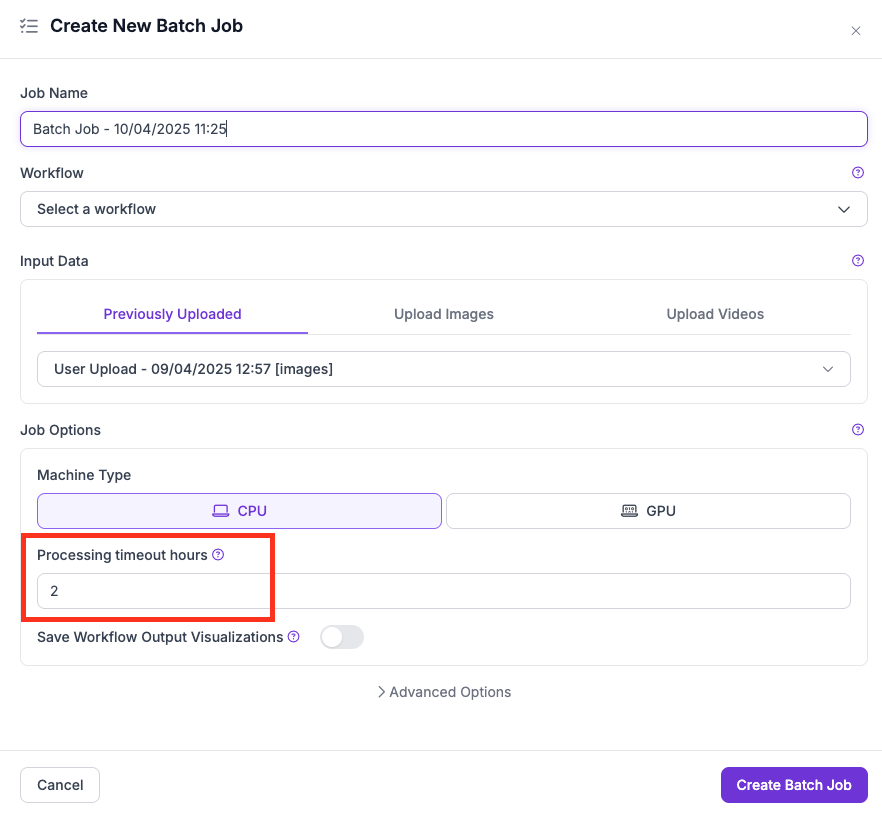
Batch jobs terminate prematurely if the **Processing Timeout Hours** is set too low relative to the job's size or complexity.
Processing Timeout setting in the UI
### Details
The timeout setting (UI) or `--max-runtime-seconds` (CLI) defines the **maximum cumulative machine runtime across all parallel workers**.
* **Total compute time:** If the limit is 2 hours and the job spawns 2 machines, each can run for a maximum of 1 hour (2 machines x 1 hour = 2 hours total).
* **Divided per chunk:** Jobs are split into processing chunks to enable parallelism. The timeout is divided across chunks — a short timeout with many chunks may leave too little time per chunk.
* **Machine type matters:** Running complex Workflows on CPU increases processing time significantly. Use GPU where appropriate.
### Recommendations
* Start with a generous timeout (e.g., 4–6 hours) for large datasets or multi-stage Workflows.
* Monitor actual job runtimes to inform future timeout settings.
* Consider reducing chunk count or using video frame sub-sampling for faster processing.
## Workflow with SAHI Runs Too Long
### Issue
Jobs using SAHI — particularly with high-resolution inputs and instance segmentation — may take much longer than expected.
### Causes and Recommendations
**Excessive number of slices:** SAHI splits images into smaller slices for detection. With default settings and high-resolution inputs, this can mean dozens or hundreds of inferences per image.
* Check the Image Slicer block configuration. Reduce slices or downscale inputs using a Resize Image block earlier in the Workflow.
**Consider larger model input size instead of SAHI:** Training a model with larger input dimensions can eliminate the need for SAHI entirely. Test on a small sample first.
**Instance segmentation bottleneck:** When SAHI is used with instance segmentation, the Detections Stitch block (especially with NMS) can become a major bottleneck — stitching a single frame can take tens of seconds.
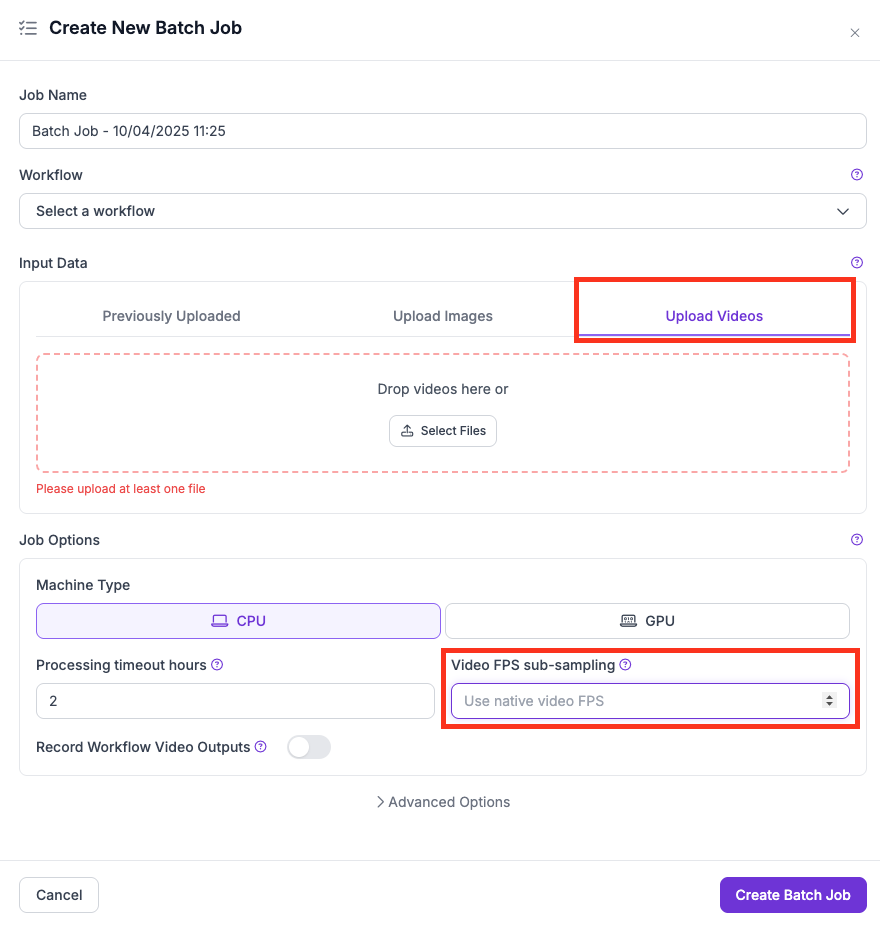
**Video jobs with SAHI:** Use FPS sub-sampling to skip frames:
* In the UI, use the **Video FPS sub-sampling** dropdown.
* In the CLI, use the `--max-video-fps` flag.
FPS sub-sampling setting in the UI
## Out of Memory (OOM) Errors
### Issue
Jobs fail due to OOM errors when the Workflow consumes more RAM or VRAM than available.
### Common Causes
* **SAHI + Instance Segmentation:** This combination is extremely memory-intensive. SAHI multiplies inference calls, and instance segmentation generates large outputs (masks, scores), often leading to crashes.
* **Too many workers per machine:** Multiple workers optimize cost and speed for lightweight Workflows, but heavy Workflows (multiple large models, complex post-processing) will exceed available memory.
### Recommendations
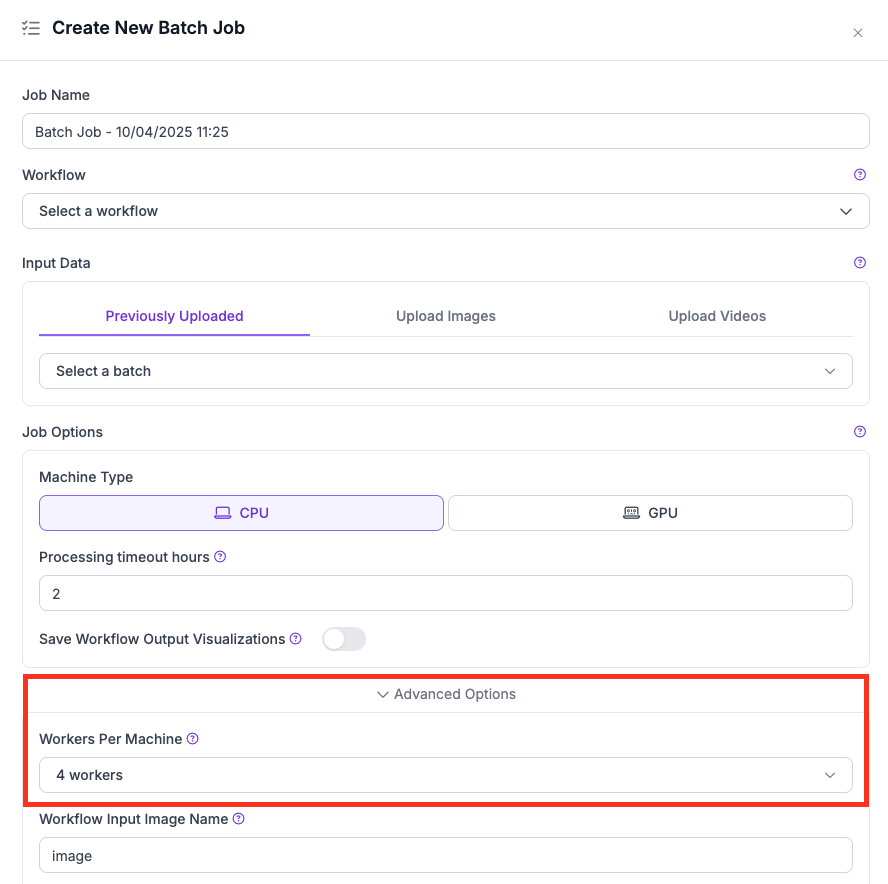
* Use fewer workers per machine (e.g., 1 or 2) for Workflows with large models, SAHI, or high-resolution inputs.
* Lower the **Workers Per Machine** value under Advanced Options.
* Switch from CPU to GPU if your model needs higher memory throughput.
* Test your Workflow on a small dataset before running large batches.
* Reduce input resolution or simplify the Workflow by removing unneeded blocks.
Workers per machine setting in the UI
## Per-Shard Image Failure Tolerance
### How It Works
Image batch jobs are split into shards that run in parallel. Each shard tracks how many images failed during processing. If the failure rate within a single shard exceeds a threshold, that shard is aborted. The rest of the job continues unaffected.
By default, the platform applies a fixed failure threshold. You can override this per job by setting `maxImageFailureRate` in the job creation request body. The value is a float between `0.0` and `1.0`:
* `0.0` means zero tolerance (abort the shard on the first failure).
* `1.0` means the shard is never aborted, regardless of how many images fail.
* Omit the field or set it to `null` to use the platform default.
This parameter applies only to image jobs. Video jobs do not support it.
### Setting via the API
Include `maxImageFailureRate` in the job creation payload:
```json
{
"type": "simple-image-processing-v1",
"maxImageFailureRate": 0.1,
...
}
```
The value can also be overridden when restarting a failed or aborted job, by including it in the restart parameters override.