> For the complete documentation index, see [llms.txt](https://docs.roboflow.com/llms.txt). Markdown versions of documentation pages are available by appending `.md` to page URLs; this page is available as [Markdown](https://docs.roboflow.com/deployment/roboflow-cloud/dedicated-deployments/pause-and-resume-a-dedicated-deployment.md).
# Pause and Resume a Dedicated Deployment
Pause a Dedicated Deployment to stop billing when idle, then resume it when you need it again.
You can pause a Dedicated Deployment if you are not currently using the Deployment but want to keep the Deployment for later.
You will not be able to make requests to a paused Dedicated Deployment until you start the Dedicated Deployment again.
You will not be billed while a Dedicated Deployment is paused.
You can pause a Dedicated Deployment from:
1. The Deployments page in your Roboflow dashboard, and;
2. The Dedicated Deployments tab of the "Choose an Inference Server" setting in the Workflow editor.
You can resume a Dedicated Deployment at any time.
### Pause or Resume a Dedicated Deployment from the Deployments List
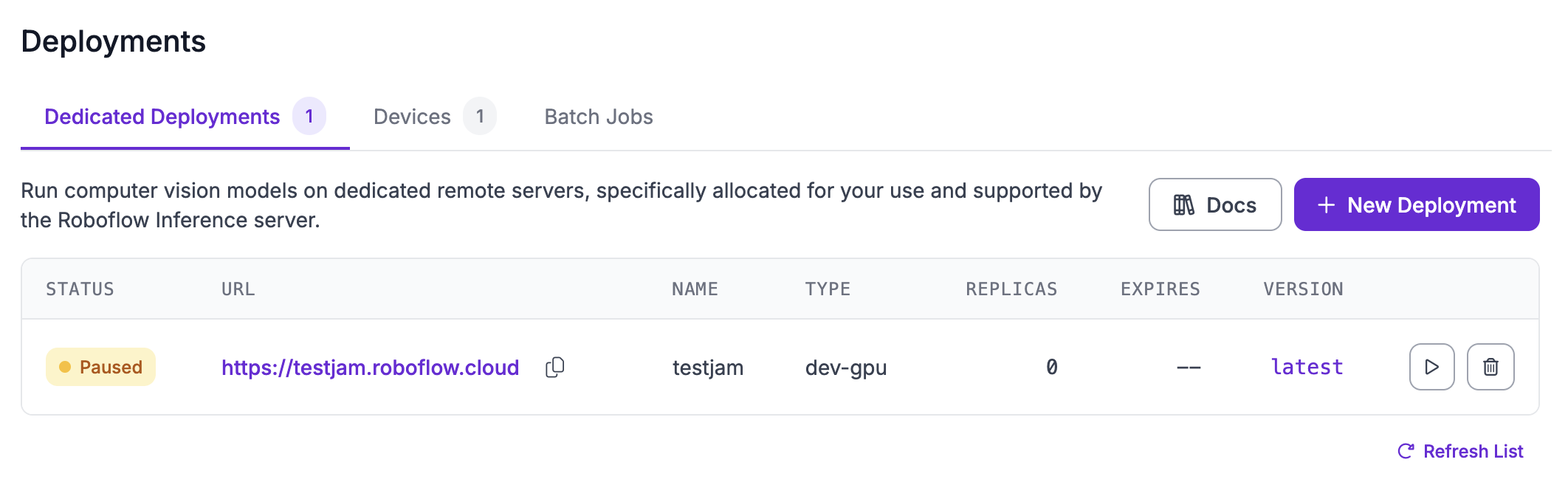
First, click "Deployments" from the left sidebar of your Roboflow dashboard, then click the "Dedicated Deployments" tab.
To pause a Dedicated Deployment, click the pause icon.
To resume a Dedicated Deployment, click the play icon.
### Pause or Resume a Dedicated Deployment from the Workflows Editor
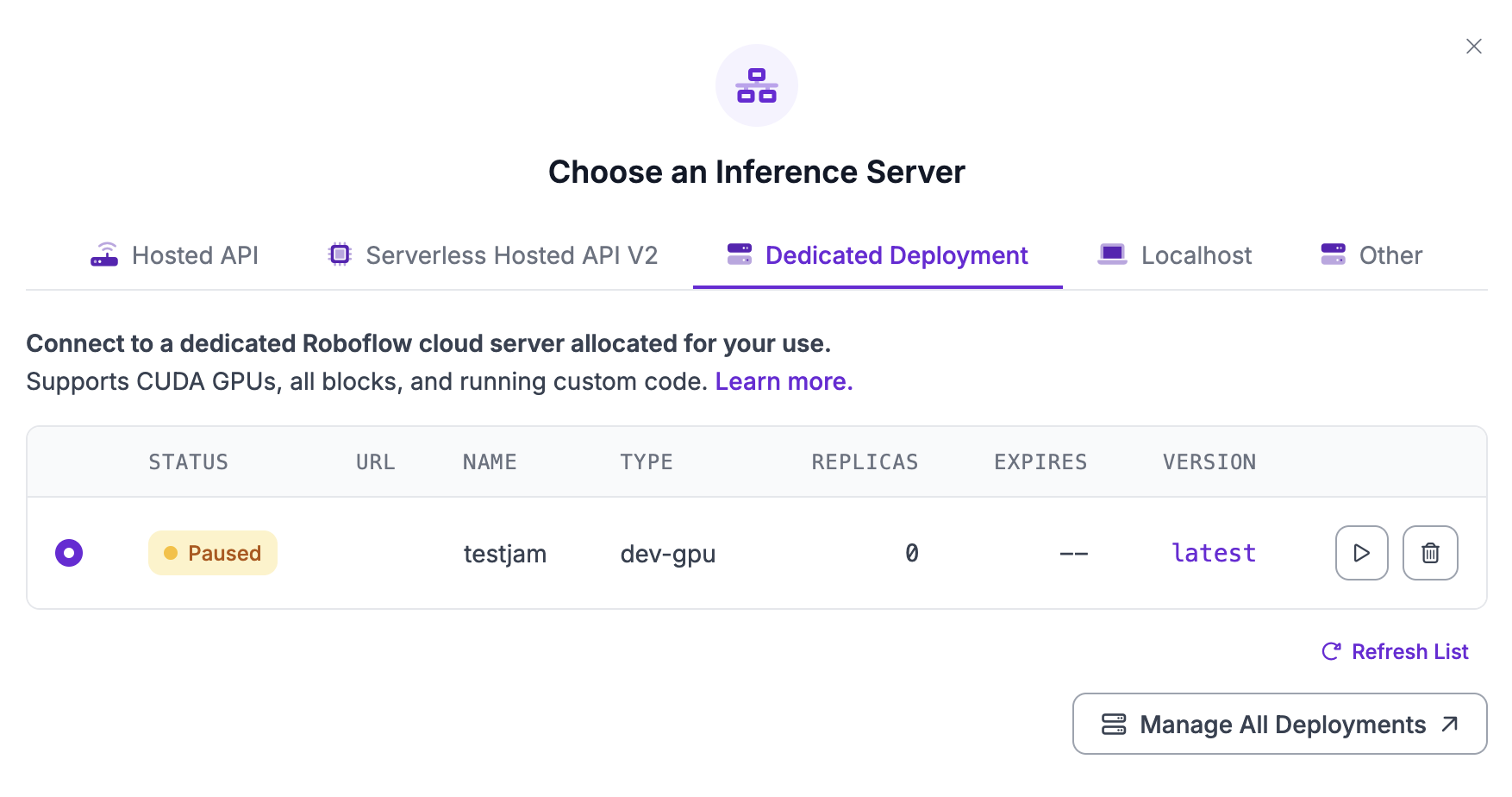
You can also pause or resume a Dedicated Deployment from the "Choose an Inference Server" page in the Workflows editor. To delete the Deployment, first open a Workflow, then click the "Running on" option:
A window will appear with several deployment options. Click "Dedicated Deployments""
To pause a Dedicated Deployment, click the pause icon next to the deployment you want to pause.
To resume a Dedicated Deployment, click the play icon next to the deployment you want to resume.