> For the complete documentation index, see [llms.txt](https://docs.roboflow.com/llms.txt). Markdown versions of documentation pages are available by appending `.md` to page URLs; this page is available as [Markdown](https://docs.roboflow.com/deployment/self-hosted/enterprise/deployment-manager/setting-up/set-up-device-alerts.md).
# Set up Device Alerts
Configure email alerts for device connectivity, disk usage, camera FPS, and inference FPS issues.
Roboflow Deployment Manager can send you email alerts when your device may not be functioning as you expect, such as when:
* Device loses connectivity with the Roboflow Cloud
* Disk usage is unusually high and may impact device performance
* Camera FPS on a particular stream drops too low
* Inference FPS on a particular stream drops too low
* A [PLC Relay](/deployment/self-hosted/enterprise/deployment-manager/services/plc-relay.md) service loses its connection to the PLC
* An [OPC UA Server](/deployment/self-hosted/enterprise/deployment-manager/services/opc-ua-server.md) service refuses new clients because it reached its session limit
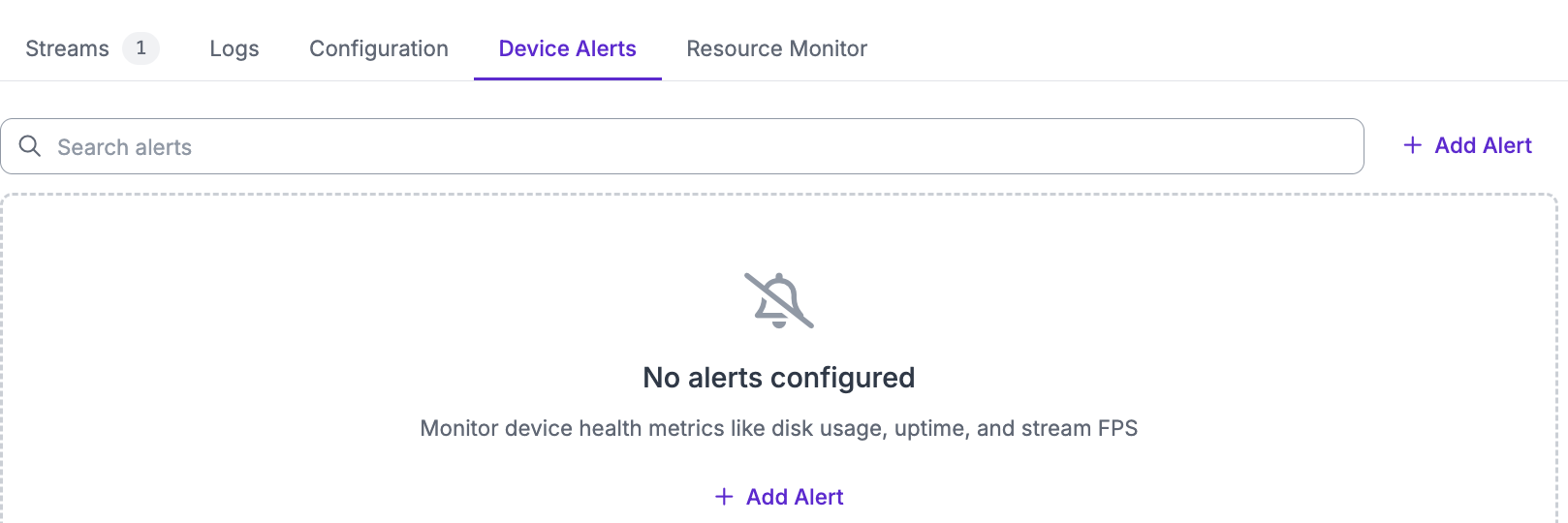
To set up a device alert, go to the specific page for a device from the Deployment Manager dashboard. Then go to the "Device Alerts" tab and click on "Add Alert".
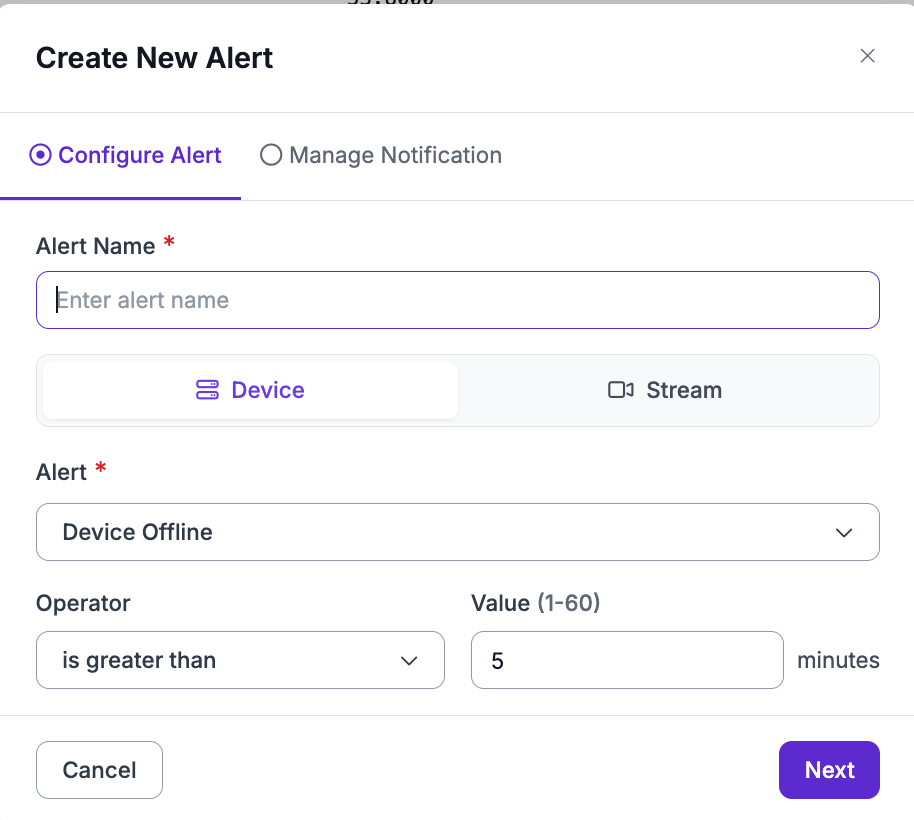
Configure your desired alert in the modal that opens
For Camera FPS, Inference FPS, and Sharpness alerts, you can set an optional "Duration (Minutes)" from 5 to 60. The alert then fires only when the condition holds for that long (ex: Camera FPS below 1 for 10 minutes), so short dips and restarts do not send an email. Leave it empty to alert on the first reading. Streams that are paused or stopped do not send these alerts.
Click "Add Condition" to add up to five conditions to one alert. With two or more conditions, use "Alert When" to choose how they combine. "Any Condition Holds" sends an email for each condition that holds. "All Conditions Hold" sends one email only when every condition holds at the same time (ex: Inference FPS below 10 and disk usage above 90%). Exception and error event counts cannot be part of an "All Conditions Hold" alert.
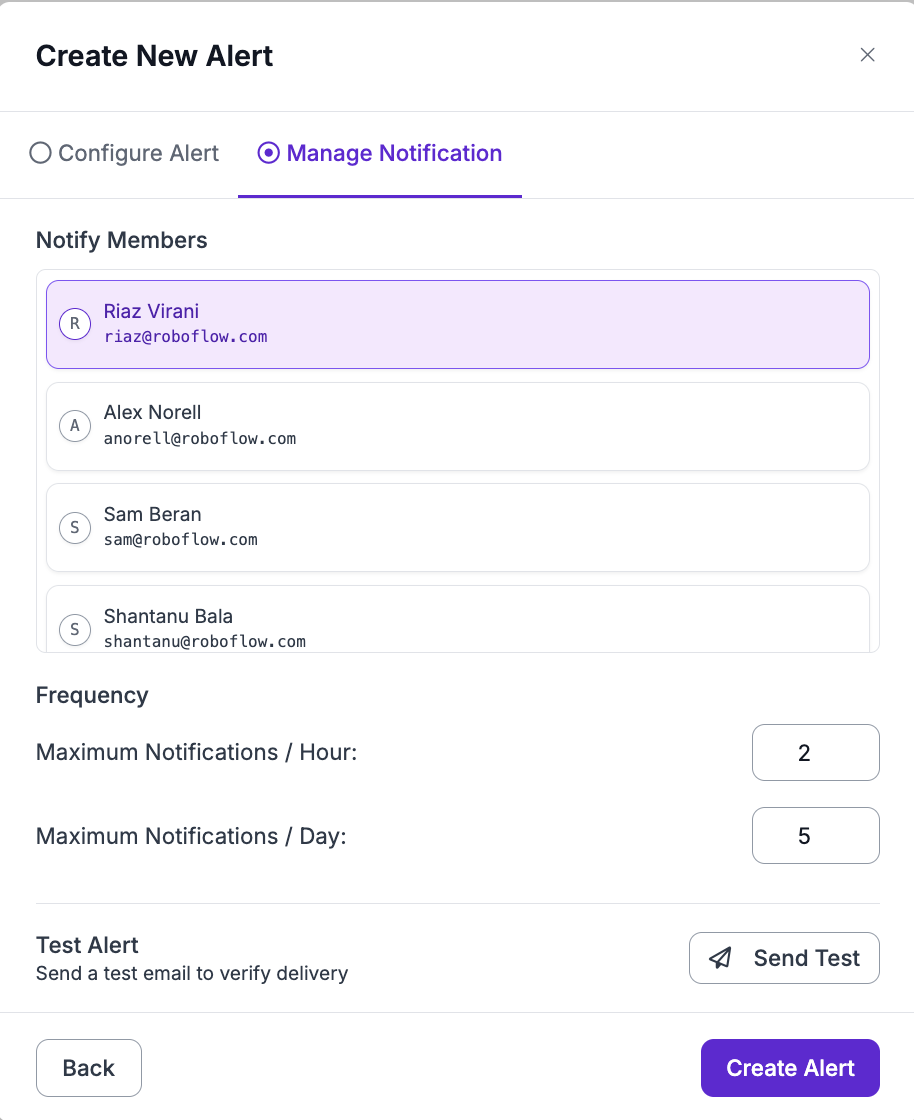
Then click on "Manage Notification" where you can configure the recipients and frequency of of alerts as well as send a test notification.
Then click on "Create Alert" and you should see the alert in your list of alerts.