> For the complete documentation index, see [llms.txt](https://docs.roboflow.com/llms.txt). Markdown versions of documentation pages are available by appending `.md` to page URLs; this page is available as [Markdown](https://docs.roboflow.com/platform/enterprise-features/recommended-enterprise-access-setup.md).

# Recommended Access Setup

Combine custom roles, Auth Groups and folder permissions so that a role says what a person may do and a group says where.

This page describes the access model recommended for workspaces with several sites, business units or teams. It combines three features that are documented separately: [Role-Based Access Control](/platform/enterprise-features/role-based-access-control.md), [Project Folder Permissions](https://docs.roboflow.com/datasets/manage/project-folders/project-folder-permissions) and Auth Groups. Screenshots come from an example workspace set up this way.

{% hint style="info" %}
Custom roles, Auth Groups, folder permissions and SSO group mapping are Enterprise features. Contact the [Roboflow sales team](https://roboflow.com/sales) or your account representative to enable them.
{% endhint %}

## Roles Say What, Groups Say Where

Putting a location in a role name (ex: Engineer-PlantA, Engineer-PlantB) multiplies roles, and the copies drift apart over time. Split the question in two.

* A role defines what a person may do: annotate, train, deploy, manage API keys, manage folders. Roles apply to the whole workspace.
* An Auth Group defines where they may do it. Groups are granted Read-Only or Read & Write on folders. Membership is manual or mapped from SSO groups.

A production engineer at Plant A is Role: Eng-Prod plus Group: Plant A. A visitor from Plant B who reviews Plant A's models keeps their own role and gets Read-Only on the Plant A folder through a group grant. No role is created for a place.

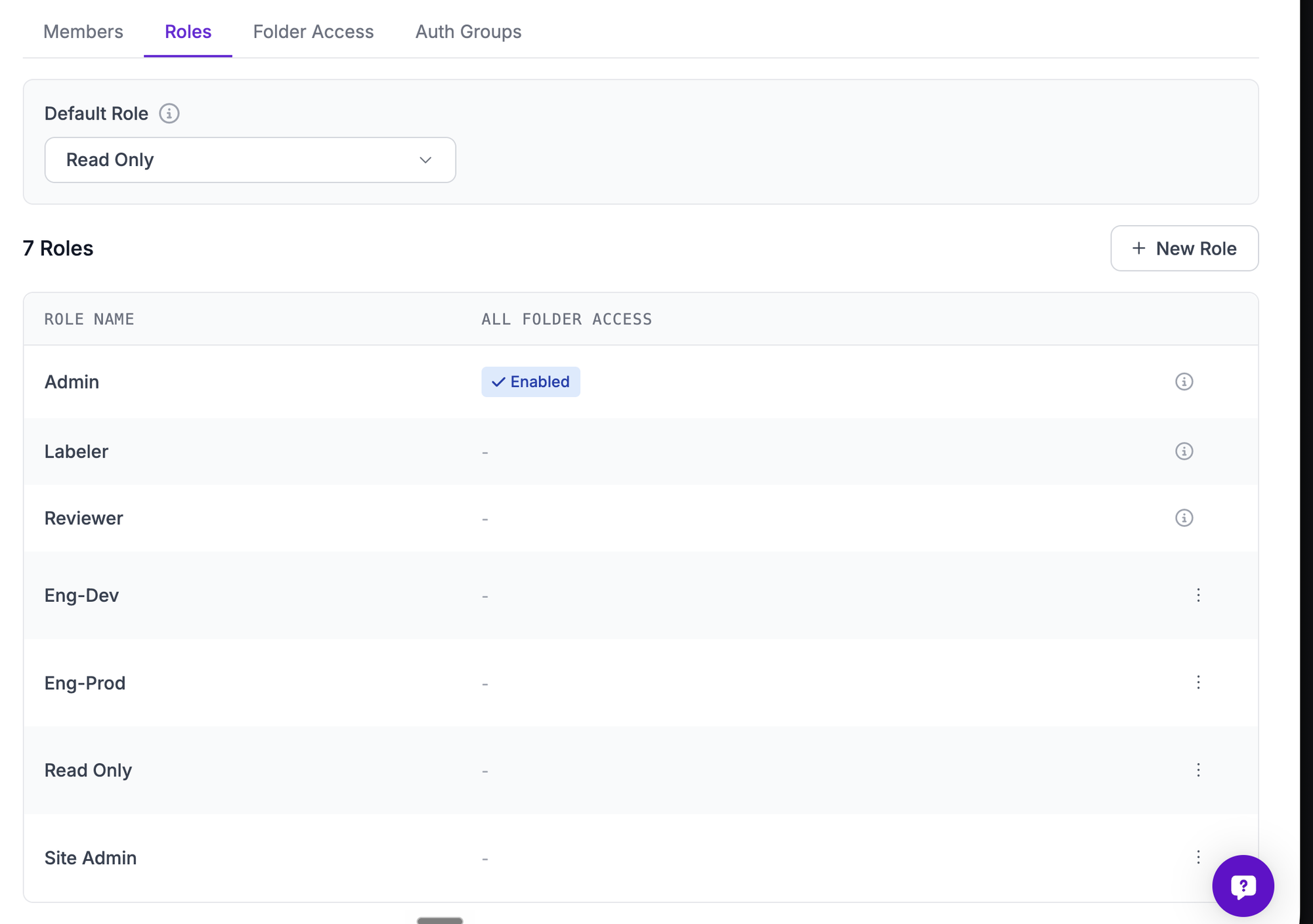
<figure><img src="https://4160767428-files.gitbook.io/~/files/v0/b/gitbook-x-prod.appspot.com/o/spaces%2F1YMZNIiZMBdlCHUDeZMP%2Fuploads%2Fgit-blob-2799beba3ed7cc9da2d8e9fd31258148c518aef5%2Faccess-setup-roles-tab.png?alt=media" alt="Roles tab listing Admin, Labeler, Reviewer, Eng-Dev, Eng-Prod, Read Only and Site Admin"><figcaption><p>The "Roles" tab with the built-in roles plus Read Only, Eng-Dev, Eng-Prod and Site Admin.</p></figcaption></figure>

## The Recommended Role Ladder

Five roles, from least to most access.

| Role               | Typical holders               | What they can do                                                                                                                                                                       |
| ------------------ | ----------------------------- | -------------------------------------------------------------------------------------------------------------------------------------------------------------------------------------- |
| New User (default) | every new login               | Nothing until assigned.                                                                                                                                                                |
| Read Only          | operators, auditors, visitors | View projects, models, Vision Events and device monitoring. Run inference in the app. No annotation, training or deploy.                                                               |
| Eng-Dev            | development engineers         | Create datasets, annotate, upload, train, generate versions, run jobs. No deploy, no key management, no folder creation.                                                               |
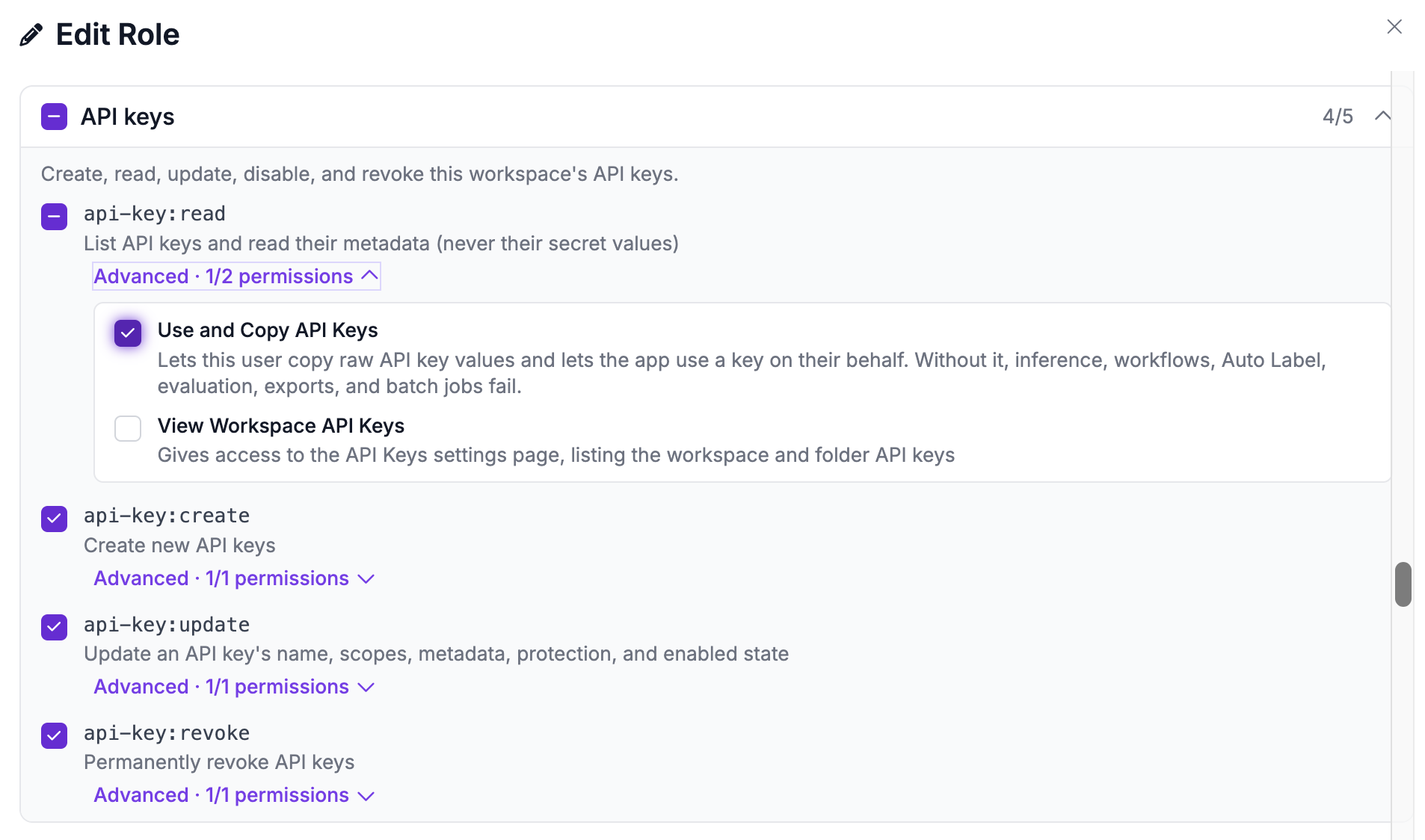
| Eng-Prod           | production engineers          | Eng-Dev plus deploy, manage models and workflows, manage devices, create Vision Events, run batch jobs. Full API key lifecycle (create, update, revoke) in the folders they can reach. |
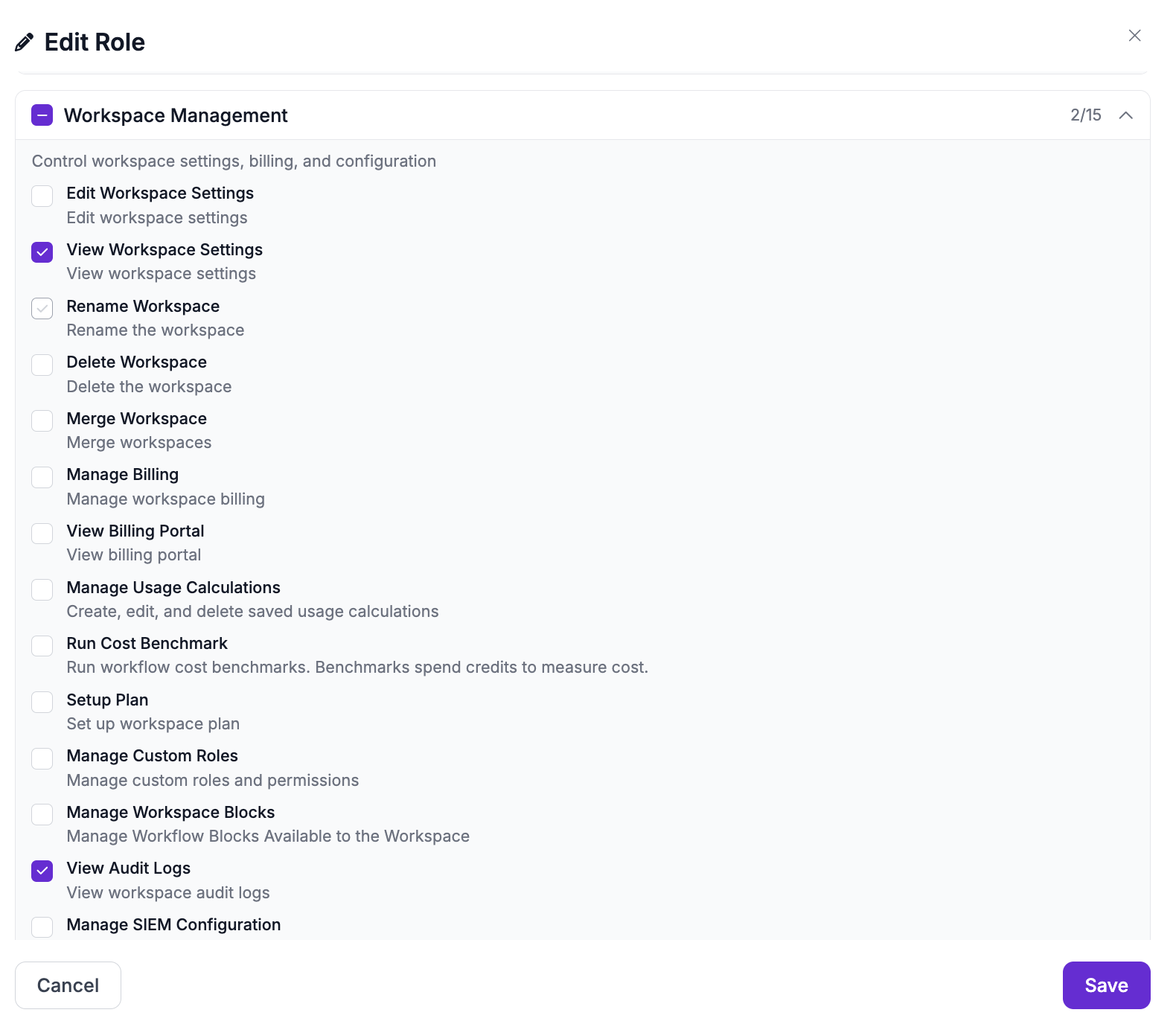
| Site Admin         | one or two people per site    | Everything except workspace administration and member management. Creates folders, grants folder access to groups, manages keys, reads stats and audit logs.                           |
| Admin (built-in)   | central IT, program lead      | Full access, including workspace-wide API keys, billing, SSO and custom roles.                                                                                                         |

Engineers do not create folders. The folder tree (ex: Business Unit > Site > Environment) is the governance structure, so folder creation stays with Site Admin and Admin. Only Admin sees workspace-wide API keys. Site Admin and Eng-Prod work with folder keys, which keeps the most sensitive credentials with the fewest people.

<figure><img src="https://4160767428-files.gitbook.io/~/files/v0/b/gitbook-x-prod.appspot.com/o/spaces%2F1YMZNIiZMBdlCHUDeZMP%2Fuploads%2Fgit-blob-24a5d4eba394c5c4d12c53d2002b128330233f53%2Faccess-setup-eng-prod-api-keys.png?alt=media" alt="Edit Role dialog for Eng-Prod showing the API keys permission group"><figcaption><p>Eng-Prod, "API keys" group: create, update and revoke on, "Use and Copy API Keys" on, "View Workspace API Keys" off.</p></figcaption></figure>

<figure><img src="https://4160767428-files.gitbook.io/~/files/v0/b/gitbook-x-prod.appspot.com/o/spaces%2F1YMZNIiZMBdlCHUDeZMP%2Fuploads%2Fgit-blob-383b61909b22e0fdef503eea9c301d980c230f00%2Faccess-setup-site-admin-workspace.png?alt=media" alt="Edit Role dialog for Site Admin showing the Workspace Management permission group"><figcaption><p>Site Admin, "Workspace Management" group: only "View Workspace Settings" and "View Audit Logs".</p></figcaption></figure>

## What a Role Can Do and Where It Can See

A person's effective access is the intersection of role and folder grant. The role fixes the column, the grant fixes the row.

| Folder grant for the person's group | Read Only                               | Eng-Dev                          | Eng-Prod                                                         | Site Admin                                                       | Admin                           |
| ----------------------------------- | --------------------------------------- | -------------------------------- | ---------------------------------------------------------------- | ---------------------------------------------------------------- | ------------------------------- |
| No grant                            | folder hidden                           | folder hidden                    | folder hidden                                                    | folder hidden                                                    | full access (All Folder Access) |
| Read-Only                           | view projects and models, run inference | same as Read Only                | view, plus manage the folder's API keys (see note)               | view, plus manage the folder's API keys (see note)               | full access                     |
| Read & Write                        | view, run inference                     | annotate, upload, train, version | Eng-Dev plus deploy, workflows, devices, Vision Events, API keys | Eng-Prod plus create subfolders and share the folder with groups | full access                     |

Key operations follow the role wherever the folder is reachable. Grant Read-Only to visitors sparingly, and through a group so it can be removed in one place.

Every person sits in one cell of a grid. Rows are roles, columns are places.

| **Role**       | **Plant A folder** | **Plant B folder** | **All folders** |
| -------------- | ------------------ | ------------------ | --------------- |
| **Read Only**  | line operators     | visiting auditor   |                 |
| **Eng-Dev**    | dev engineers      |                    |                 |
| **Eng-Prod**   | prod engineers     | (Read-Only visit)  |                 |
| **Site Admin** | plant A lead       | plant B lead       |                 |
| **Admin**      |                    |                    | central IT      |

A transfer changes the person's group. A promotion changes their role.

## Setting It Up

### Create the Roles

Go to Settings, "Team Members", "Roles" and click "New Role". Build each role from the ladder above. Start from the closest built-in role with "Duplicate Permissions From" and adjust. The permission groups in the editor (ex: "Workspace Management", "User & Team Management", "API keys") match the categories in the table. See [Creating a Custom Role](/platform/enterprise-features/role-based-access-control.md#creating-a-custom-role) for the editor itself.

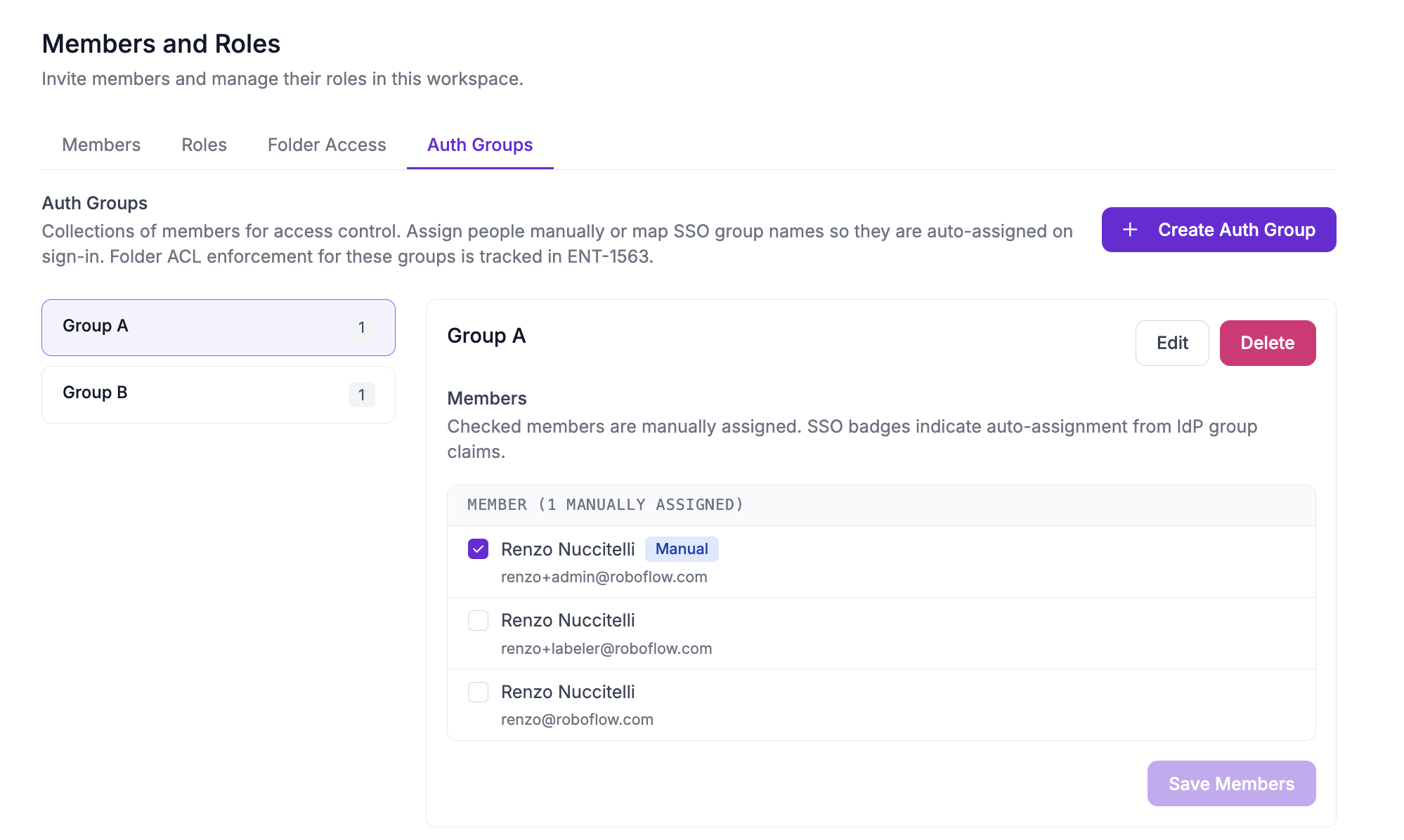
### Create One Auth Group per Site

Go to Settings, "Team Members", "Auth Groups" and click "Create Auth Group". Name groups after places (ex: Plant A, Plant B), never after jobs. If a site's Dev and Prod folders have different people, create one group per site and environment. Add members by hand, or map an SSO group name so membership follows your identity provider (see [Automating It with SSO](#automating-it-with-sso)).

<figure><img src="https://4160767428-files.gitbook.io/~/files/v0/b/gitbook-x-prod.appspot.com/o/spaces%2F1YMZNIiZMBdlCHUDeZMP%2Fuploads%2Fgit-blob-a948840be88b30f9fb266446f4ee8bc7ef3a1621%2Faccess-setup-auth-groups.png?alt=media" alt="Auth Groups tab with two groups and their members"><figcaption><p>The "Auth Groups" tab with two site groups and their manually assigned members.</p></figcaption></figure>

### Share Each Site Folder with Its Group

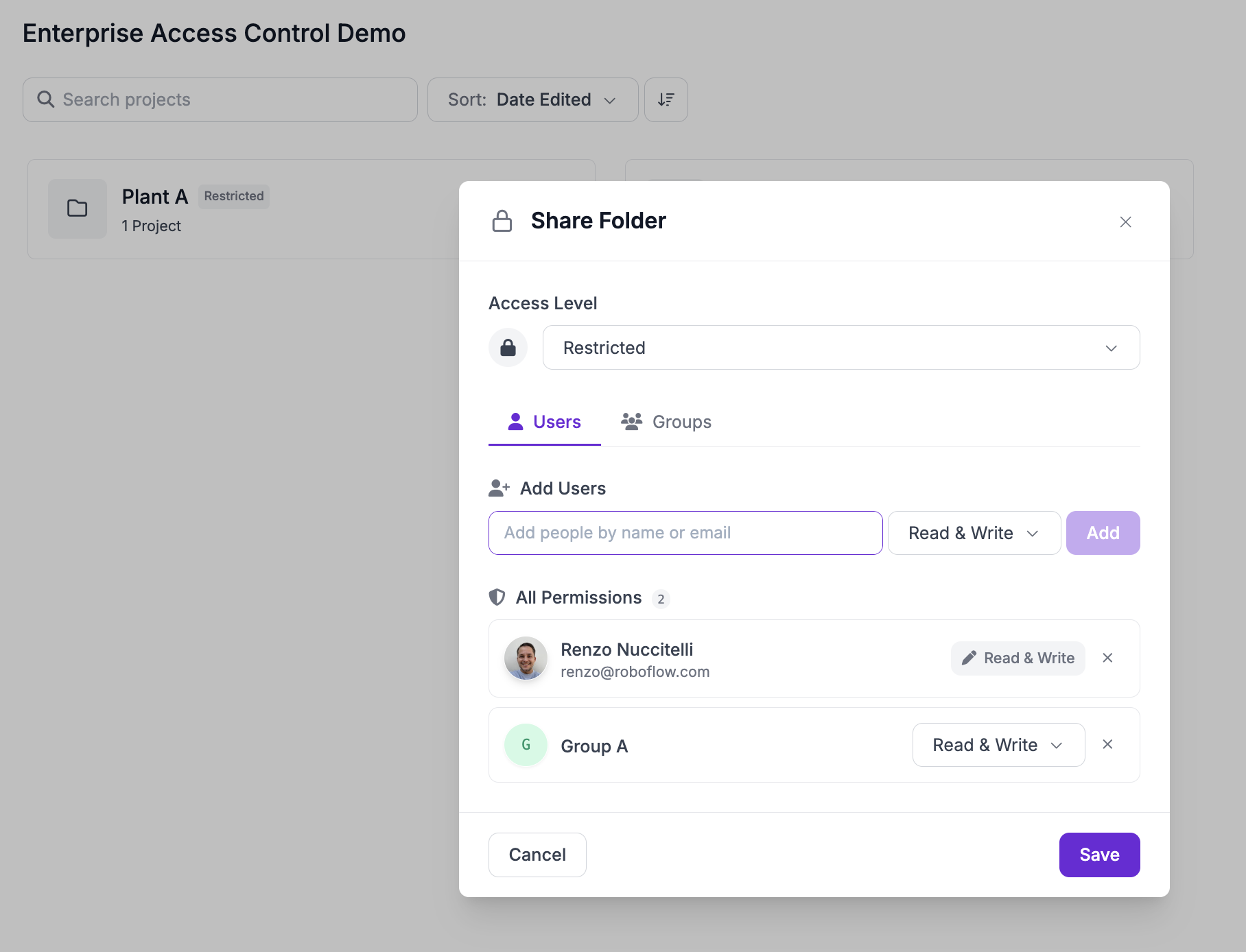
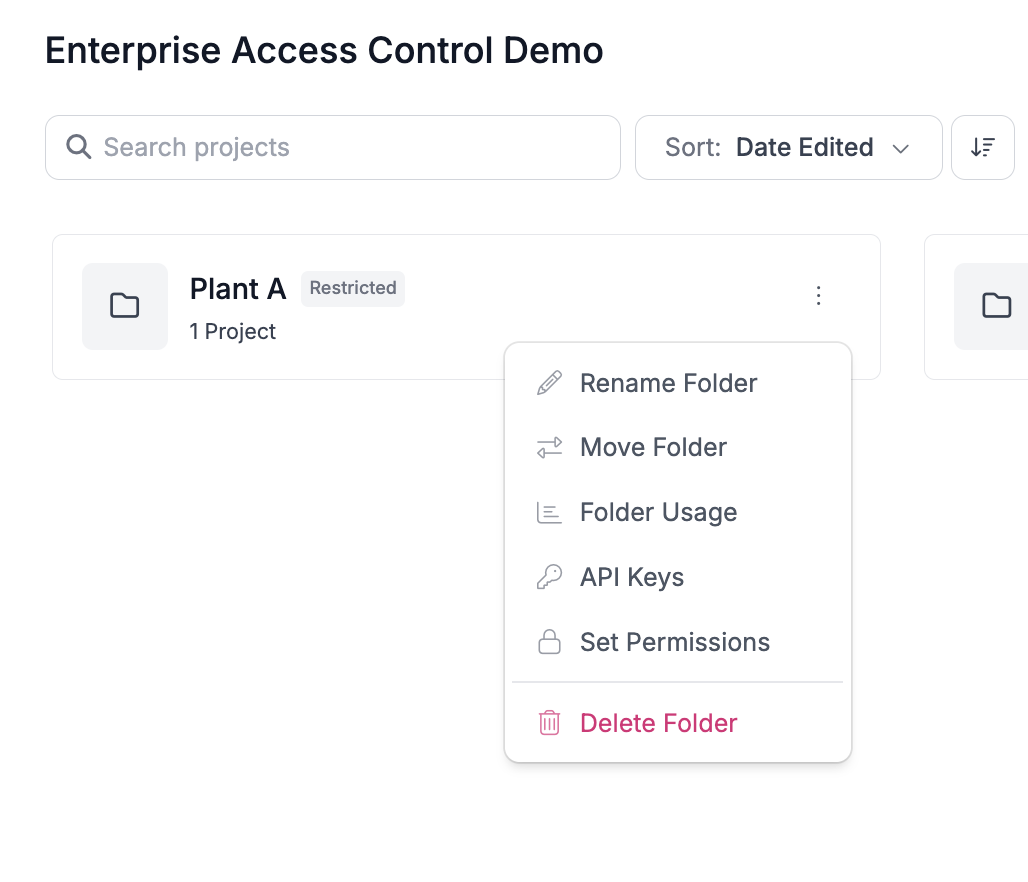
On the folder card, open the menu and choose "Set Permissions". Grant Read & Write to the site's group and Read-Only to any visiting group. Retire individual grants as groups take over. A transfer or a leaver then becomes one group edit. See [Project Folder Permissions](https://docs.roboflow.com/datasets/manage/project-folders/project-folder-permissions) for the access levels.

<figure><img src="https://4160767428-files.gitbook.io/~/files/v0/b/gitbook-x-prod.appspot.com/o/spaces%2F1YMZNIiZMBdlCHUDeZMP%2Fuploads%2Fgit-blob-e4bf8f0a374d3694bb076e31482700624df98924%2Faccess-setup-share-folder.png?alt=media" alt="Share Folder dialog with a group granted Read &#x26; Write"><figcaption><p>"Share Folder" on a site folder: a group granted Read &#x26; Write next to an individual grant. Groups are the target state.</p></figcaption></figure>

### Assign Roles to Members

Go to Settings, "Team Members", "Members" and set each member's role. Role and group are independent, so nobody needs a second role to visit another site. See [Change a Team Member Role](/platform/workspaces/team-members/change-a-team-member-role.md).

## API Keys in This Model

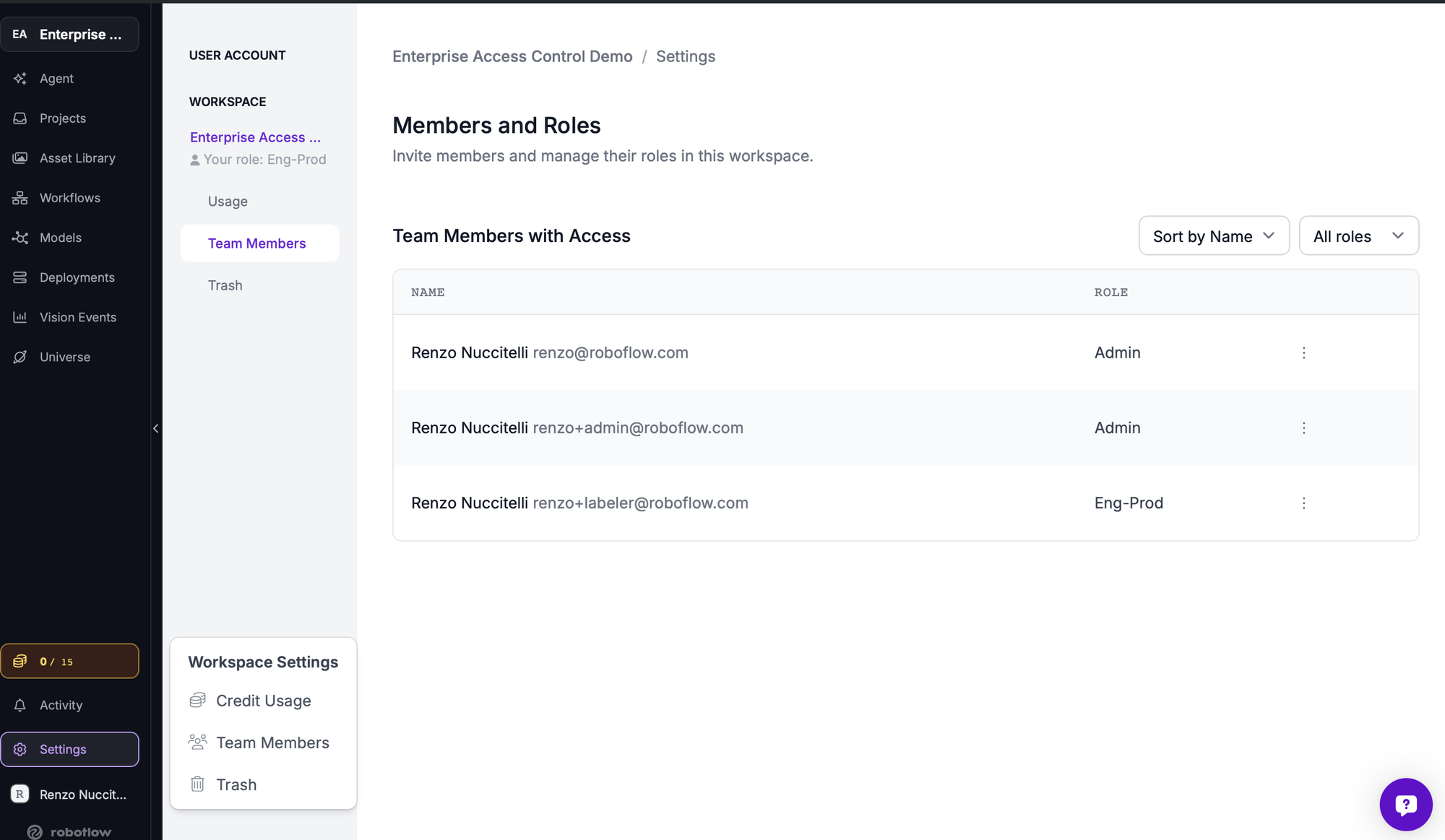
Folder keys carry site work. Workspace-wide keys are for Admin only. A folder key is visible to anyone who can reach the folder. Site Admin and Eng-Prod manage keys from the folder card menu and have no "API Keys" page in Settings.

Create several keys per folder: one per production line, device fleet or integration. Each key is its own line in usage reporting, so spend can be attributed within a folder (see [Billing Folders](/platform/billing-and-plans/billing-folders.md#folder-api-keys)), and two live keys allow overlap during rotation.

Every key shows a rotation date 365 days after creation, and an Overdue badge once past it. Rotate by generating a new key, moving consumers to it, and revoking the old one. "Roll" rotates in place when a hard cutover is acceptable. The management API returns the same date as `rotationDueAt`.

<figure><img src="https://4160767428-files.gitbook.io/~/files/v0/b/gitbook-x-prod.appspot.com/o/spaces%2F1YMZNIiZMBdlCHUDeZMP%2Fuploads%2Fgit-blob-05f30f98398bccc8f66b44a80f1dc483b8894e77%2Faccess-setup-folder-menu.png?alt=media" alt="Folder card menu with the API Keys entry"><figcaption><p>The folder card menu: "API Keys" sits next to "Folder Usage" and "Set Permissions".</p></figcaption></figure>

<figure><img src="https://4160767428-files.gitbook.io/~/files/v0/b/gitbook-x-prod.appspot.com/o/spaces%2F1YMZNIiZMBdlCHUDeZMP%2Fuploads%2Fgit-blob-ca19dda24a8a12a0ab4111d9a28cf55bbd9fcbd9%2Faccess-setup-folder-api-keys.png?alt=media" alt="API Keys dialog for one folder with three keys"><figcaption><p>"API Keys" for one folder: keys named after their consumers, an owner in metadata, a rotation date on each, and "Generate New Key".</p></figcaption></figure>

<figure><img src="https://4160767428-files.gitbook.io/~/files/v0/b/gitbook-x-prod.appspot.com/o/spaces%2F1YMZNIiZMBdlCHUDeZMP%2Fuploads%2Fgit-blob-0a2f685ee5573972e6fe60cf6b01bff777e1190c%2Faccess-setup-rotation-badges.png?alt=media" alt="Key table with overdue and upcoming rotation badges"><figcaption><p>Rotation badges on the key table, with "Show only keys due for rotation" to narrow the list.</p></figcaption></figure>

<figure><img src="https://4160767428-files.gitbook.io/~/files/v0/b/gitbook-x-prod.appspot.com/o/spaces%2F1YMZNIiZMBdlCHUDeZMP%2Fuploads%2Fgit-blob-1fc590337581497f9f2b501063453d25fc96e875%2Faccess-setup-eng-prod-settings.png?alt=media" alt="Settings sidebar as an Eng-Prod member with no API Keys entry"><figcaption><p>Settings as an Eng-Prod member: "Usage", "Team Members" and "Trash" only. Keys live on the folders.</p></figcaption></figure>

## Automating It with SSO

If your identity provider sends group claims, map one SSO group to each role and one to each site Auth Group. See [Single Sign On](/platform/enterprise-features/single-sign-on-sso.md#custom-role-mapping-via-sso-groups) for the identity provider side.

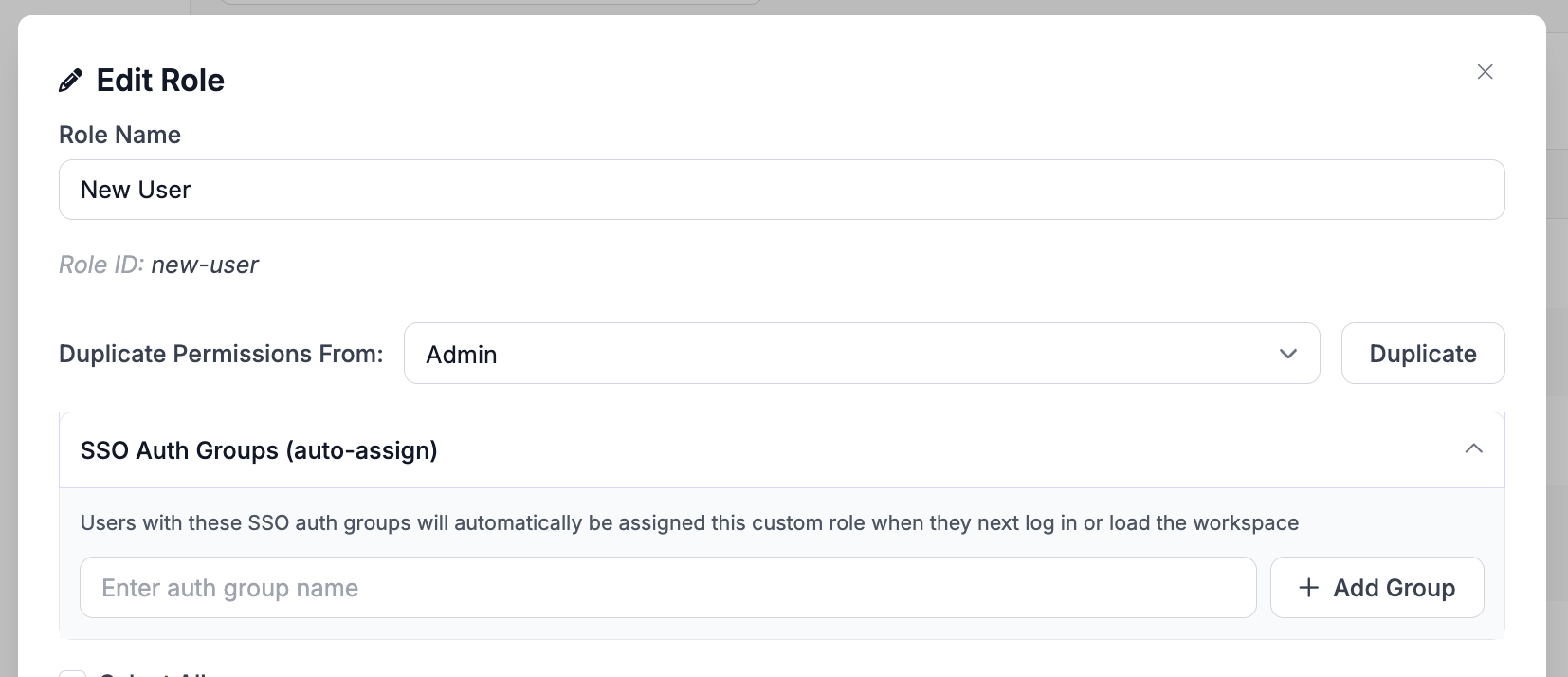
* Roles: in the role editor, open "SSO Auth Groups (auto-assign)" and add the identity provider group name. Users carrying that group get the role on their next login or workspace load.
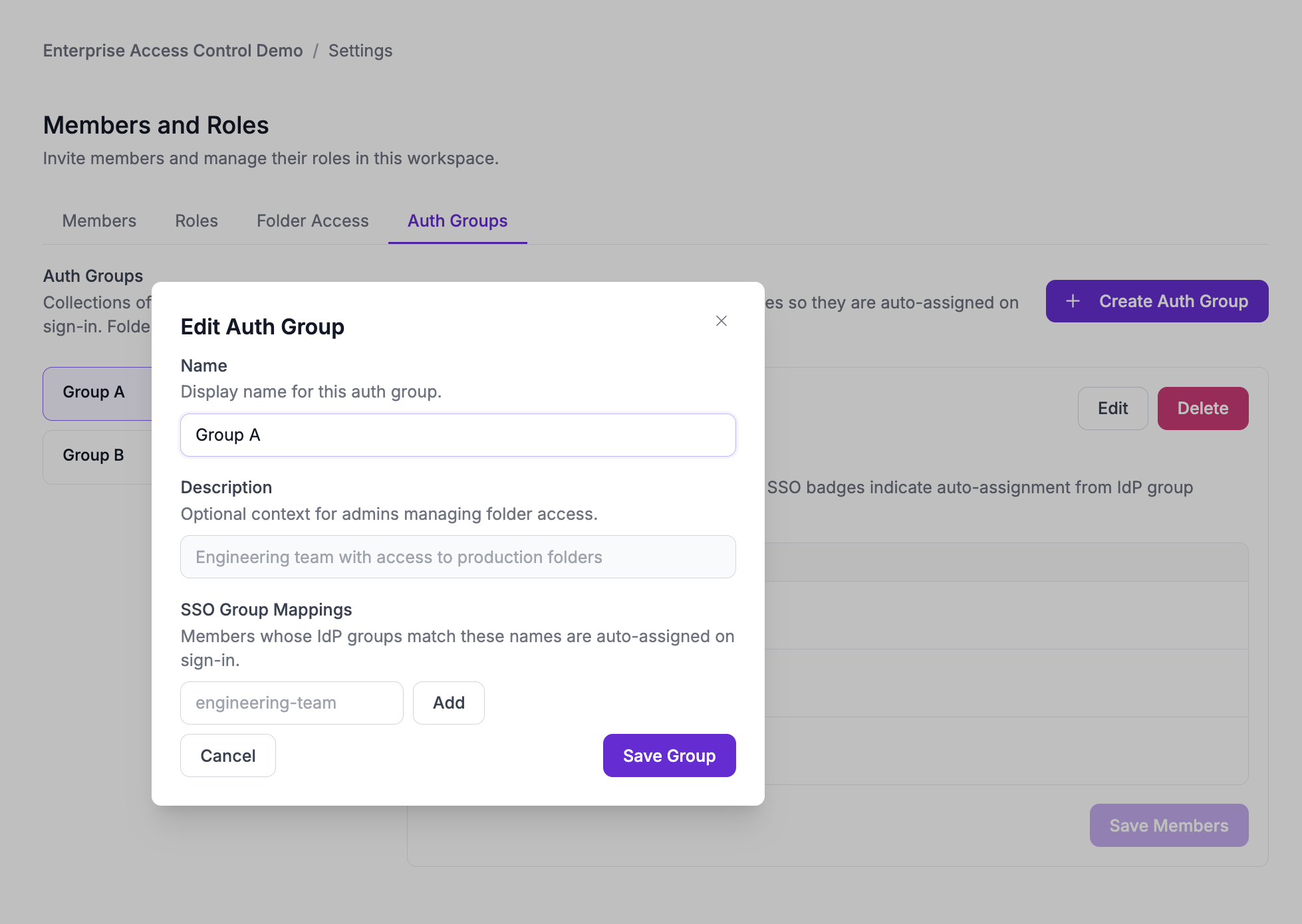
* Auth Groups: on the group, click "Edit" and add the identity provider group name under "SSO Group Mappings". Matching members are assigned on sign-in and show an SSO badge in the member list.

A new hire lands in the default role until IT adds them to the right groups. Role and folder access appear on their next login. Enable the mapping one role at a time. Manual assignments keep working for anything left unmapped.

<figure><img src="https://4160767428-files.gitbook.io/~/files/v0/b/gitbook-x-prod.appspot.com/o/spaces%2F1YMZNIiZMBdlCHUDeZMP%2Fuploads%2Fgit-blob-35d15ebb844827381e12c1cae668469435666891%2Faccess-setup-role-sso.png?alt=media" alt="Edit Role dialog with the SSO Auth Groups field"><figcaption><p>"Edit Role" with the "SSO Auth Groups (auto-assign)" field.</p></figcaption></figure>

<figure><img src="https://4160767428-files.gitbook.io/~/files/v0/b/gitbook-x-prod.appspot.com/o/spaces%2F1YMZNIiZMBdlCHUDeZMP%2Fuploads%2Fgit-blob-c400477b17ae13a4466a9330e221dc18b40927ed%2Faccess-setup-auth-group-sso.png?alt=media" alt="Edit Auth Group dialog with the SSO Group Mappings field"><figcaption><p>"Edit Auth Group" with the "SSO Group Mappings" field.</p></figcaption></figure>