> For the complete documentation index, see [llms.txt](https://docs.roboflow.com/llms.txt). Markdown versions of documentation pages are available by appending `.md` to page URLs; this page is available as [Markdown](https://docs.roboflow.com/workflows/build/draw-polygon-zones.md).

# Draw Polygon Zones and Lines

Draw a polygon zone or line on an image online and get its polygon coordinates. The Roboflow Workflow editor replaces the PolygonZone tool.

Draw a polygon zone or line on an image in the Roboflow Workflow editor, and get its polygon coordinates as a list of `[x, y]` points. Blocks use these zones to count objects that cross a line or time how long people stay in an area. The editor replaces the standalone PolygonZone tool (polygonzone.roboflow\.com): you draw a polygon online, on a frame from your camera or video, and the editor fills in the polygon points for you.

## Blocks That Use Polygon Zones

<table data-search="false"><thead><tr><th>Block</th><th>Field</th><th>Shape</th></tr></thead><tbody><tr><td><a href="/workflows/blocks/blocks/video-processing/line-counter.md">Line Counter</a></td><td>Line Segment</td><td>Line with 2 points</td></tr><tr><td><a href="/workflows/blocks/blocks/visualize-predictions/line-counter-visualization.md">Line Counter Visualization</a></td><td>Zone</td><td>Line with 2 points</td></tr><tr><td><a href="/workflows/blocks/blocks/video-processing/path-deviation.md">Path Deviation</a></td><td>Reference Path</td><td>Line with any number of points</td></tr><tr><td><a href="/workflows/blocks/blocks/visualize-predictions/reference-path-visualization.md">Reference Path Visualization</a></td><td>Reference Path</td><td>Line with any number of points</td></tr><tr><td><a href="/workflows/blocks/blocks/video-processing/timein-zone.md">Time in Zone</a></td><td>Zone</td><td>Polygon</td></tr><tr><td><a href="/workflows/blocks/blocks/visualize-predictions/polygon-zone-visualization.md">Polygon Zone Visualization</a></td><td>Zone</td><td>Polygon</td></tr><tr><td><a href="/workflows/blocks/blocks/video-processing/motion-detection.md">Motion Detection</a></td><td>Detection Zone</td><td>Polygon</td></tr><tr><td><a href="/workflows/blocks/blocks/advanced-blocks/perspective-correction.md">Perspective Correction</a></td><td>Perspective Polygons</td><td>Polygon with 4 points</td></tr></tbody></table>

## Draw a Polygon Zone

1. Add one of the blocks above to your Workflow and select it.
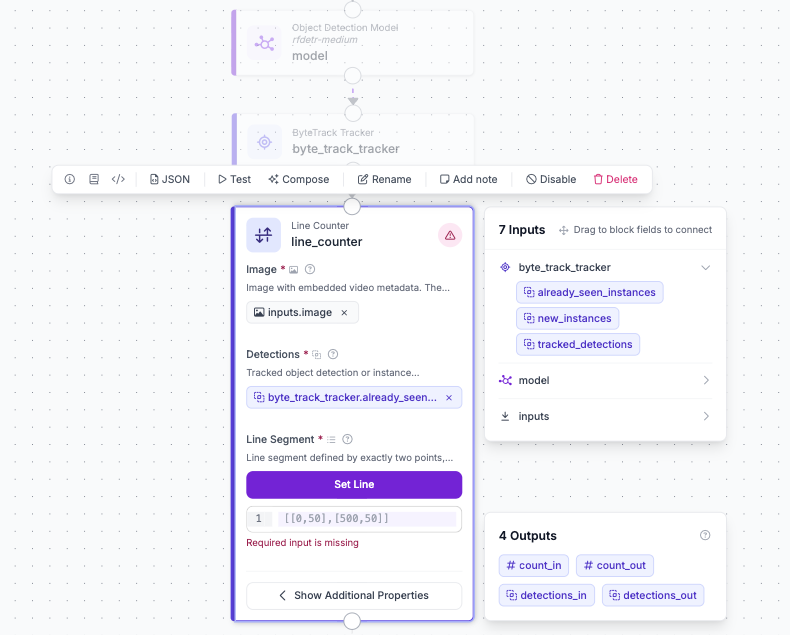
2. Under the line or zone field, click "Set Line" (for lines and paths) or "Set Polygon Zone" (for polygons).

<figure><img src="https://1126624165-files.gitbook.io/~/files/v0/b/gitbook-x-prod.appspot.com/o/spaces%2FoO0Ceoy9R0lHDZATcPyh%2Fuploads%2Fgit-blob-7e0b79ea307f55a054716318ae84487d518ce0b8%2Fdraw-lines-and-zones-set-line.png?alt=media" alt="Line Counter block with the Set Line button under the Line Segment field" width="563"><figcaption></figcaption></figure>

3. Upload a frame from your camera or video, or drag one onto the canvas. You can also upload a video file, and the editor uses its first frame. If you don't have a frame, pick a canvas size (ex: HD, Full HD) and draw on a blank canvas.
4. Click on the image to place points:
   * Line with 2 points: click the start and end. The line finishes on the second click.
   * Path: click each point, then press Enter or click the last point again to finish.
   * Polygon: click each corner, then click the first point or press Enter to close the shape.
5. Drag any point to adjust it, then click "Save".

<figure><img src="https://1126624165-files.gitbook.io/~/files/v0/b/gitbook-x-prod.appspot.com/o/spaces%2FoO0Ceoy9R0lHDZATcPyh%2Fuploads%2Fgit-blob-f8dd1075c87dcd8c214baab05e313f73fb2efecb%2Fdraw-lines-and-zones-editor.png?alt=media" alt="Polygon zone editor with a line drawn across two lanes of a road"><figcaption></figcaption></figure>

## Copy Polygon Coordinates

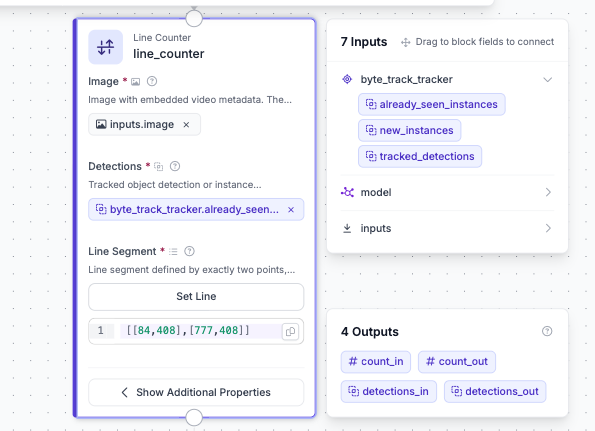
After you save, the field holds the shape as a list of `[x, y]` pixel coordinates (ex: `[[84,408],[777,408]]` for a line). Click the copy icon next to the field to copy the polygon coordinates for use in code or another Workflow.

<figure><img src="https://1126624165-files.gitbook.io/~/files/v0/b/gitbook-x-prod.appspot.com/o/spaces%2FoO0Ceoy9R0lHDZATcPyh%2Fuploads%2Fgit-blob-7daf4d948350eccf938eed31505779131a6a97f8%2Fdraw-lines-and-zones-saved.png?alt=media" alt="Line Counter block with saved line coordinates in the Line Segment field" width="563"><figcaption></figcaption></figure>

{% hint style="info" %}
Coordinates are in pixels of the image you drew on. Use a frame with the same resolution as the video your Workflow will process, or the shape will land in the wrong place. The editor shows the image resolution in the bottom left corner.
{% endhint %}

## Editor Controls

<table data-search="false"><thead><tr><th>Action</th><th>Control</th></tr></thead><tbody><tr><td>Snap the next segment to 45 degree angles</td><td>Hold Shift</td></tr><tr><td>Finish the shape</td><td>Enter</td></tr><tr><td>Cancel an unfinished shape</td><td>Esc</td></tr><tr><td>Undo</td><td>Ctrl/Cmd + Z, or "Undo"</td></tr><tr><td>Redo</td><td>Ctrl/Cmd + Shift + Z, or "Redo"</td></tr><tr><td>Remove the shape</td><td>"Clear All"</td></tr><tr><td>Draw on a different image</td><td>"New Image"</td></tr></tbody></table>

The editor keeps your image while you build the Workflow, so you can draw shapes for several blocks on the same frame.