> For the complete documentation index, see [llms.txt](https://docs.roboflow.com/llms.txt). Markdown versions of documentation pages are available by appending `.md` to page URLs; this page is available as [Markdown](https://docs.roboflow.com/workflows/manage/manage-workflow-versions.md).
# Manage Workflow Versions
View your Workflow version history, name saved versions, and roll back to a previous version.
Every time you save a Workflow, a new version is saved in your Workflow Version History.
All users can view up to 3 of their most recent Workflow versions.
{% hint style="info" %}
Full version history, renaming, and restoring previous versions are available on the [Teams Add-On](https://docs.roboflow.com/platform/billing-and-plans/plans/teams-add-on) and Enterprise workspaces. See our [pricing page](https://roboflow.com/pricing) for more info.
{% endhint %}
### See Versions
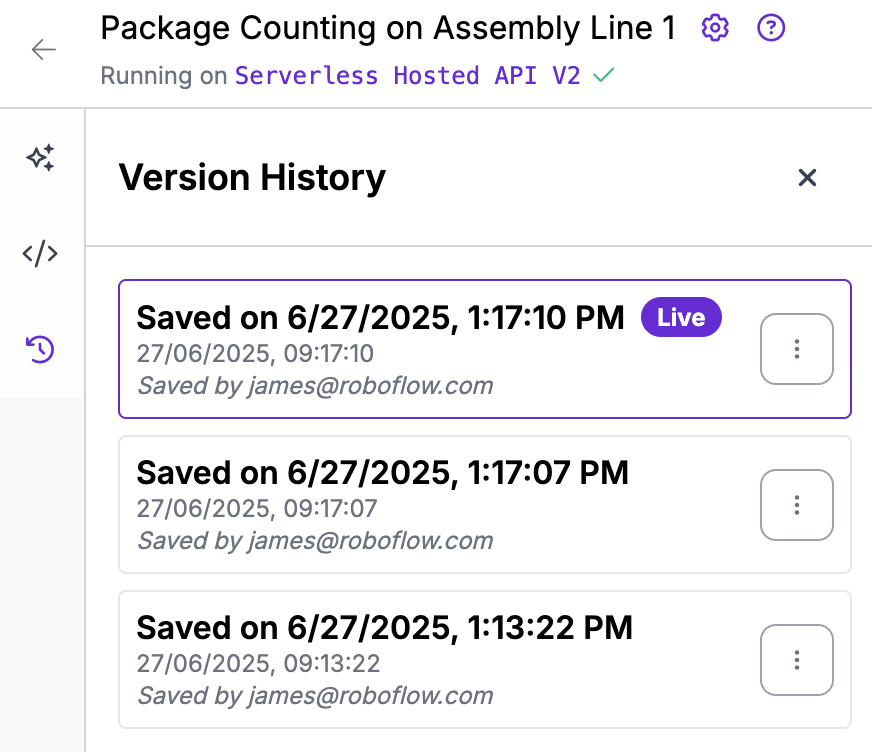
To see Versions of your Workflow, click the clock icon in the right sidebar of the Workflow editor. A panel will open up that shows all saved changes.
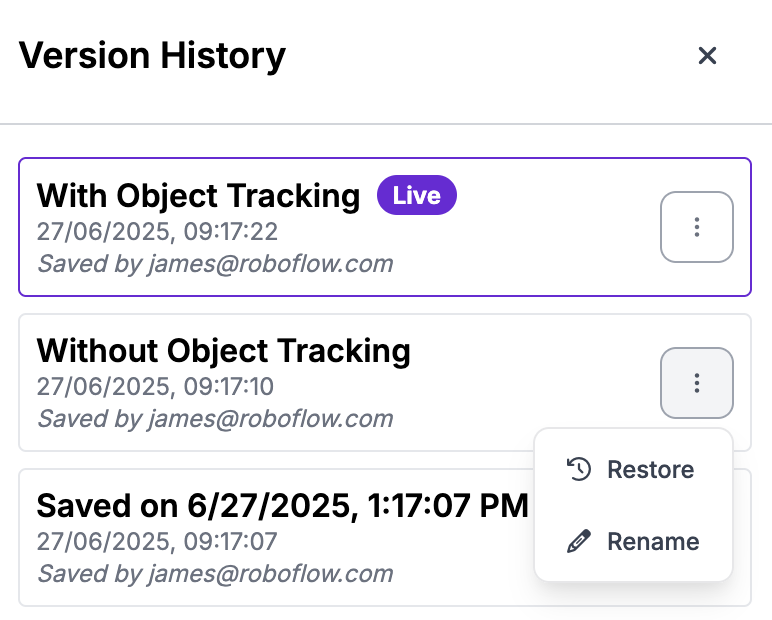
The most recent saved version will be marked as Live. This is the Workflow that will run in production when you run the Workflow.
### Set a Version Name
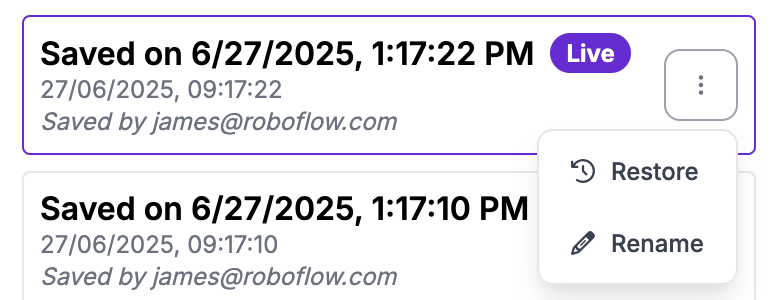
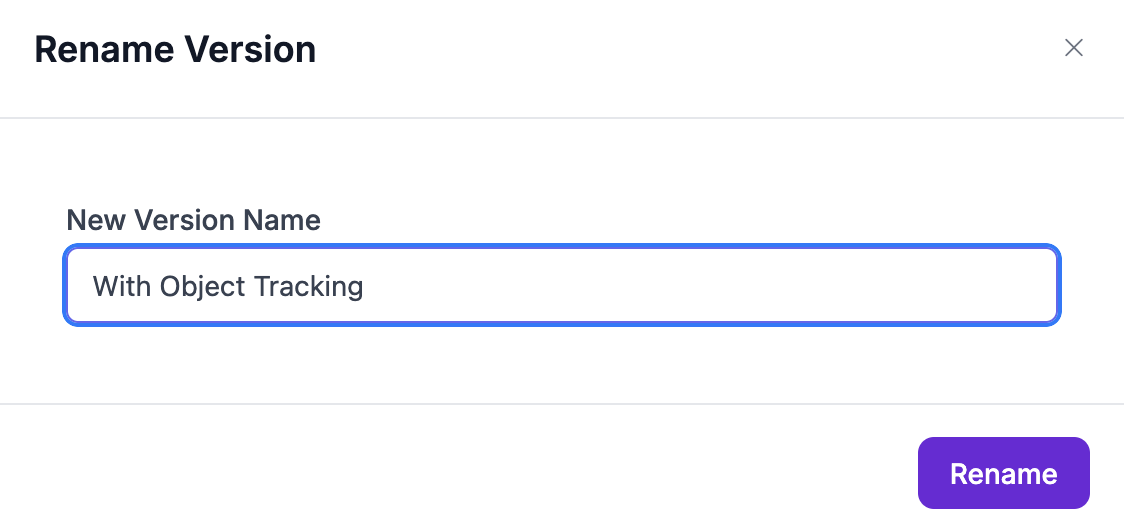
You can set names for versions in your Workflow Version History. To name a version, click the three dots next to a version name then click "Rename":
You can then specify a name for your Workflow version:
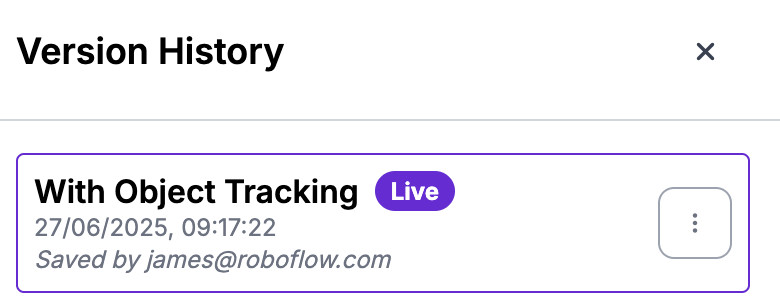
The version name will then be updated:
### Roll Back to a Previous Version
{% hint style="info" %}
This feature is available on the [Teams Add-On](https://docs.roboflow.com/platform/billing-and-plans/plans/teams-add-on) and Enterprise workspaces. See our [pricing page](https://roboflow.com/pricing) for more info.
{% endhint %}
You can roll back to a previous version of a Workflow at any time.
To roll back to a previous version, click the three dots next to the name of a Workflow then click "Restore":
The Workflow Version will then appear in your editor. You will need to click the "Save" button to save your changes:
When you press Save, a new version of your Workflow will be created with the changes you rolled back to. This will then be made the Live version of your Workflow.