> For the complete documentation index, see [llms.txt](https://docs.roboflow.com/llms.txt). Markdown versions of documentation pages are available by appending `.md` to page URLs; this page is available as [Markdown](https://docs.roboflow.com/workflows/blocks/blocks/run-a-model/object-detection-model.md).
# Object Detection Model
Run an object detection model in a Workflow.
### About this block
The Object Detection Model block lets you run an object detection model trained on or uploaded to Roboflow.
Object detection models let you identify custom objects in an image. For example, you could use an object detection block to:
1. Identify defects in a product
2. Find the location of vehicles on a road
3. Find items on an assembly line
You can run private models stored in your Workspace, or public models on Roboflow Universe.
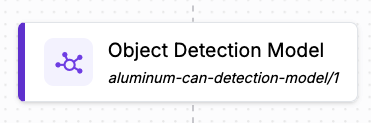
The Object Detection Model block.
### What you can send into this block
You can run the Object Detection Model block on:
1. An image that you send to your Workflow
2. A video frame that you send to your Workflow
3. A cropped region of an image that is calculated in your Workflow (i.e. with a Crop block)
### What this block returns
The object detection model block returns predictions that can be used in other blocks. Predictions contain information about:
* The location of each object found (xyxy coordinates)
* The class name associated with each object location
To see the results from your object detection model plotted on an image, you need to use a Visualizer block. You may want to use the:
* [Bounding Box Visualization](/workflows/blocks/blocks/visualize-predictions/bounding-box-visualization.md): Show the bounding boxes returned by a model.
* Label Visualization: Show the class labels returned by a model.
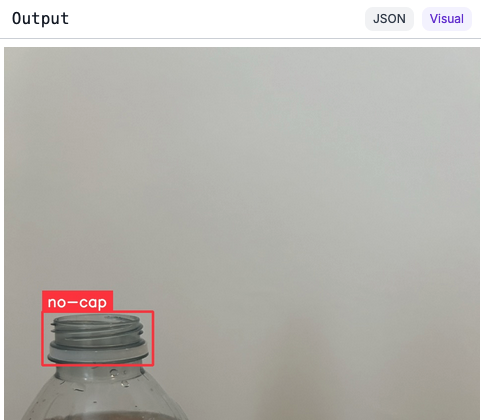
Here is an example showing object detections returned by this block visualized with both the Bounding Box and Label visualizations:
Predictions from an object detection model displayed on an image.
### How to configure the block
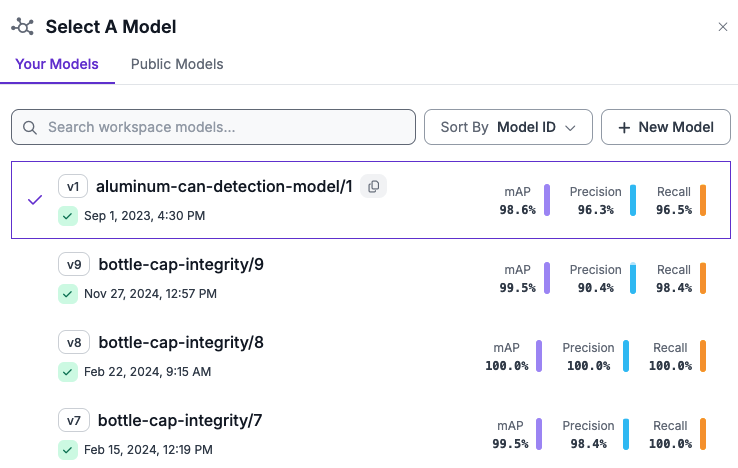
When you set up this block, you will be asked to choose a model from your Workspace:
To use a model in your Workspace, choose from the list of Your Models.
We also have a range of base and public models available.
You can select from:
* Base models like RF-DETR base and YOLO11
* Recommended models for specific use cases like vehicle detection and retail inventory detection
You can also specify the ID of any model found on Universe. [Learn how to find a model on Universe.](https://docs.roboflow.com/datasets/universe/universe/find-a-model-on-universe)
You can then configure the block using the options available in the Workflows editor.
The most common properties set are the confidence threshold for a model and the "Class Filter" tool to only return predictions with a specific class.
### Use cases
This block is useful for any Workflow that involves running a model.
If you want to track objects in a video, you can combine an object detection model with Byte Tracker. The model will return the locations of objects and Byte Tracker will track their locations throughout the video.
### Predictions format
Expand the card below to see the JSON data returned by this block.
Predictions format
Predictions are returned in the following format:
```json
[
{
"model_predictions": {
"image": {
"width": 2048,
"height": 1080
},
"predictions": [
{
"width": 795,
"height": 808,
"x": 883.5,
"y": 676,
"confidence": 0.985406219959259,
"class_id": 0,
"class": "can",
"detection_id": "8797945b-bb46-4f35-b076-9a8f832b1bb0",
"parent_id": "image"
},
{
"width": 248,
"height": 470,
"x": 1924,
"y": 845,
"confidence": 0.9593697190284729,
"class_id": 0,
"class": "can",
"detection_id": "0a61f2e5-0fd3-44e0-955b-1b66308dfab3",
"parent_id": "image"
}
]
}
}
]
```